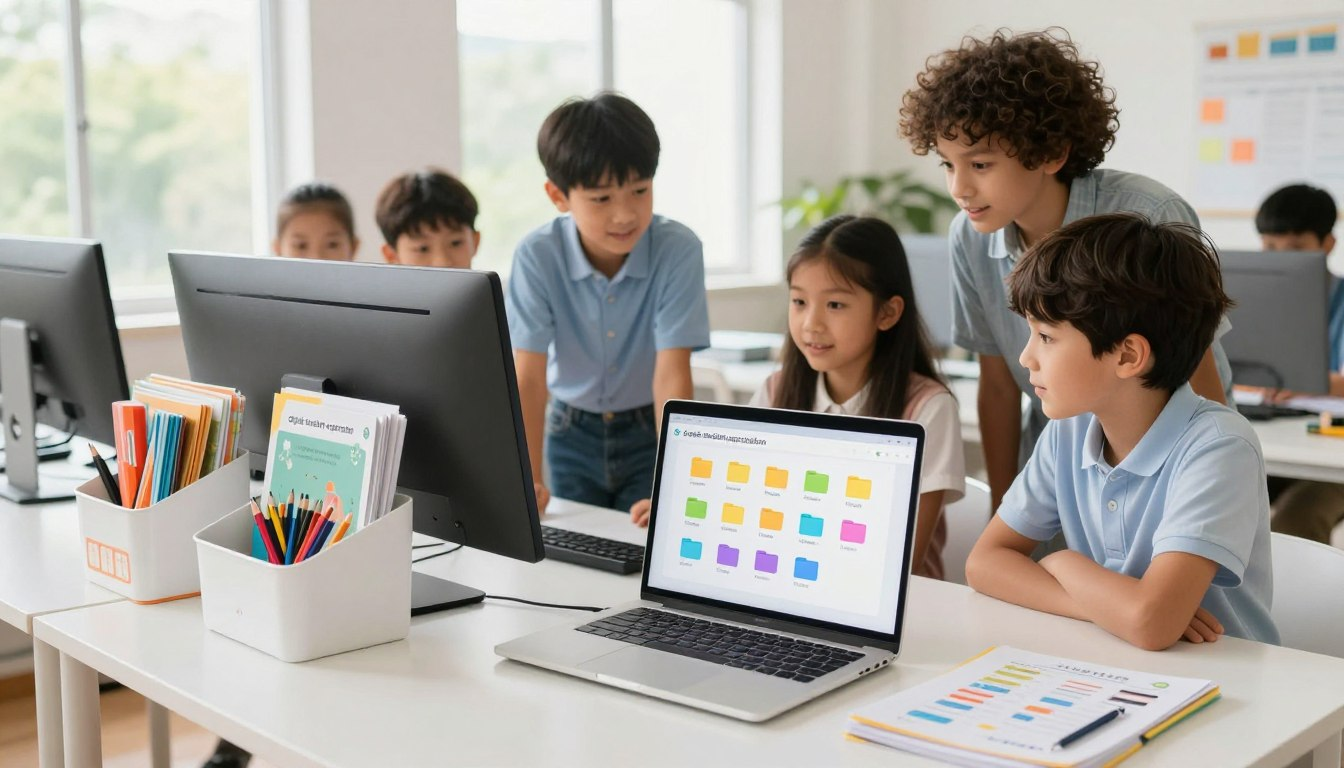
Picture trying to find your absolute favorite LEGO piece in a giant, messy pile of thousands of random toys. Frustrating, right? That is exactly what it feels like when your computer desktop is covered in a messy pile of documents, pictures, and downloads!
Just like a messy bedroom makes it hard to find your shoes, a cluttered computer screen makes homework feel like a giant treasure hunt. It slows you down, stresses you out, and leaves less time for the fun stuff.
But don’t worry! Creating a clean desktop system is like magic. By learning how to make folders on a computer for kids, you can turn a messy screen into a super-organized digital room. Let’s learn how to sort your files so you never lose your hard work again!
🧠 Why Organizing Your Computer Matters
A tidy computer is about more than just looking neat. It creates a calm digital space that helps you focus. When you know exactly where your science report or your favorite Minecraft screenshots are saved, you feel confident and in control!
Organizing files for children teaches amazing life habits. It helps you work faster, prevents you from accidentally deleting important homework, and stops the computer from slowing down. Think of it as giving your computer a nice, deep breath of fresh air.
📁 Understanding Folders vs. Files
Before we start organizing, we need to know the difference between the two main things on your computer: files and folders.
What Is a File? (The “Toy”)
A file is a single digital item. It can be a picture you drew, an essay you wrote, a funny video, or a song. Files are like individual toys (like a single action figure or a coloring book).
What Is a Folder? (The “Toy Box”)
A folder is a digital container that holds your files. Just like you put all your LEGOs in a LEGO bin, and your crayons in an art box, you use folders to group similar files together so they don’t get mixed up!
| Folder Idea (The Box) | Files Inside (The Toys) | Why It Helps |
|---|---|---|
| 🎒 School Projects | Book reports, math worksheets, science data. | Keeps homework from getting lost in video game files. |
| 📸 Family Photos | Vacation pictures, pet photos, birthday videos. | Makes it super easy to find pictures to share with Grandma! |
| 🎮 Games & Fun | Minecraft skins, Roblox mods, game saves. | Keeps your fun stuff separate from your serious school stuff. |
🛠️ How to Make Folders on a Computer for Kids
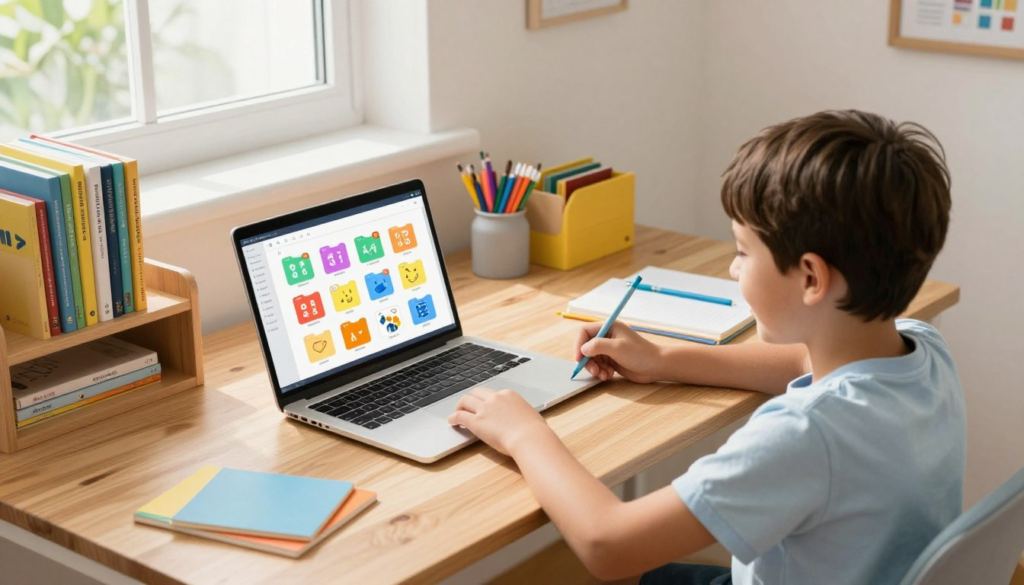
Ready to become a digital organizer? Creating folders is actually really fun and incredibly easy. Here is how to do it depending on what kind of computer you use.
Creating Folders on a Windows PC
If you are using a PC (like a Dell, HP, or Lenovo), follow these steps:
- Find an empty spot on your desktop background where there are no icons.
- Right-click your mouse (click the button on the right side).
- A secret menu will pop up! Move your mouse down to the word New.
- Click on Folder.
- A little yellow folder will appear! Type a name for it (like “Homework”) and hit the Enter key.
Creating Folders on a Mac (Apple)
If you are using a Mac (like an iMac or a MacBook), the steps are just as simple:
- Find an empty spot on your desktop.
- Two-finger tap on your trackpad (or right-click if you have a mouse).
- Click on New Folder from the menu.
- A blue folder will pop up. Type its new name and press Return!
🏗️ Creating a Genius Folder System
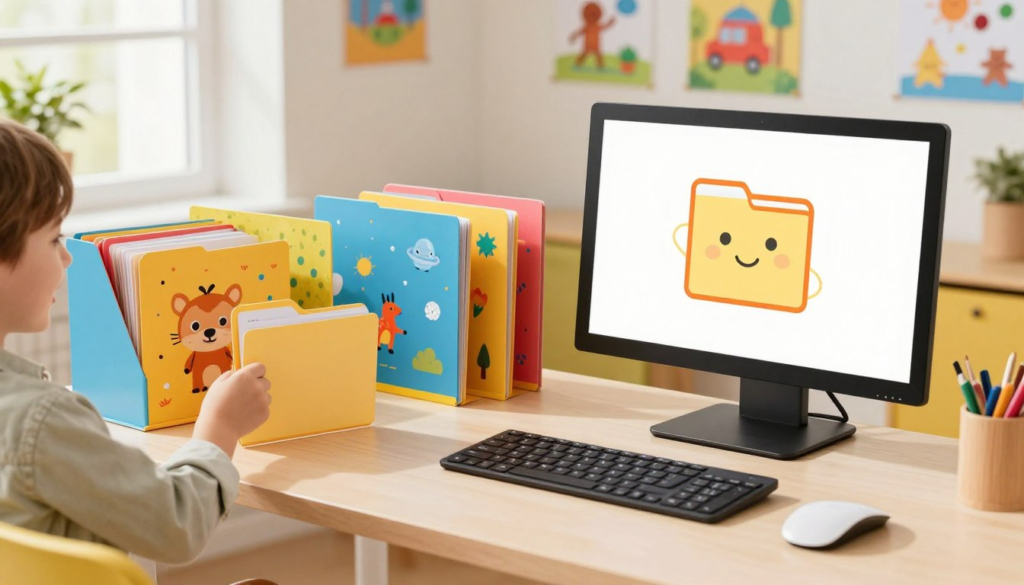
Now that you know how to build a folder, it’s time to create your system. The best way to organize is to use “Sub-folders” (folders inside of other folders!). It’s like those nesting dolls where a smaller doll fits inside a bigger one.
The “Top-Down” Method
Start with three main “Big Box” folders on your desktop. Keep it simple:
- Folder 1: School
- Folder 2: Fun Stuff
- Folder 3: Pictures
Now, open your School folder. Inside of it, right-click and make three new folders: “Math,” “Science,” and “Reading.” Now, when you have a Math worksheet, you know exactly where it goes! It lives in the Math folder, which lives inside the School folder.
🧹 Tips to Keep Your Computer Clean Forever
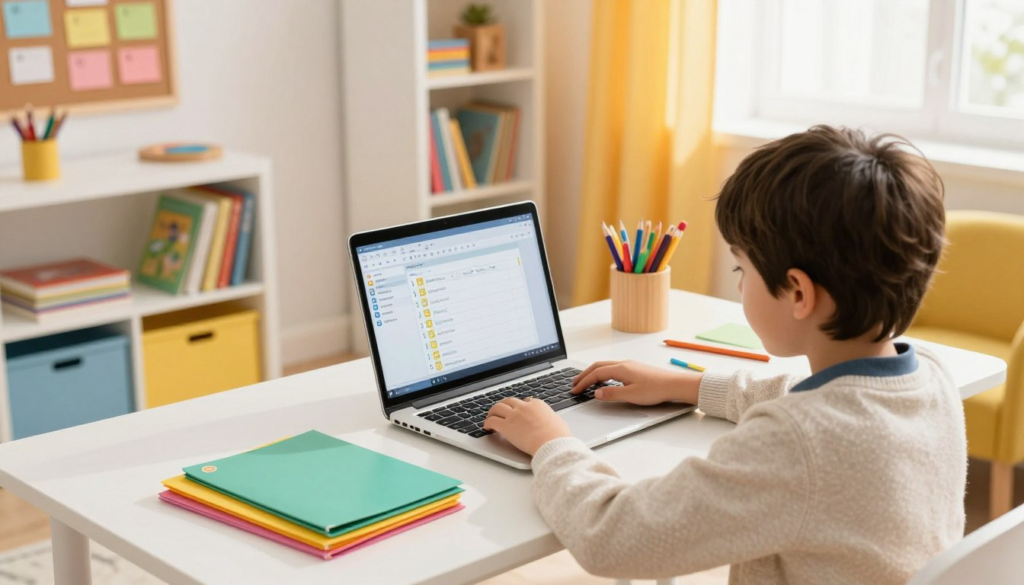
Building folders is great, but you have to use them! Teaching kids to organize files on a computer is all about building awesome daily habits. Try using these pro tips:
1. Give Things Smart Names
Never name a file “asdfghjkl” or “document1”. You will never find it again! Always give your folders and files a name that tells you exactly what is inside, like “Volcano_Science_Project”.
2. Use the “Save As” Trick
When you download a cool picture or save a report, the computer will ask you where you want to put it. Don’t just click “Save” blindly! Always take two seconds to click on the correct folder so it goes to its proper home right away.
3. Friday Clean-Up Day
Make a deal with your parents: Every Friday afternoon, spend 5 minutes dragging any stray, messy files on your desktop into their proper folders. It’s like a quick bedroom tidy-up before the weekend starts!
🎉 Conclusion
Learning how to make folders and sort your files is a superpower. It keeps your desktop looking beautiful, helps you finish your homework faster, and proves that you are responsible enough to handle cool technology!
So, take a look at your screen right now. Do you see a bunch of messy files laying around? Right-click, create a new folder, and start organizing your digital room today!
❓ Frequently Asked Questions (FAQ)
Why is organizing files for children a necessary skill?
Organizing files reduces “digital clutter,” which directly causes stress and distraction. It teaches kids personal responsibility, helps them complete school assignments faster, and prevents important work from getting accidentally deleted.
What are the easy steps to make folders on a computer for kids using Windows?
Simply go to your desktop screen, right-click on an empty space, hover your mouse over the word “New,” and click “Folder.” A new folder will appear ready for you to name!
Is there a keyboard shortcut to create a new folder?
Yes! On a Windows PC, you can press Ctrl + Shift + N to instantly pop a new folder onto your screen. On an Apple Mac, you can press Shift + Command + N.
How can parents help kids keep their computers organized?
Make it a fun routine! Set a “clean-up timer” for 5 minutes every Friday. Race to see who can drag all their loose desktop files into the correct folders before the timer goes off.
Can I put emojis in my folder names?
Absolutely! Adding an emoji (like a 📚 for School or a 🎨 for Art) makes creating digital folders for kids highly visual, colorful, and much easier to read at a quick glance!