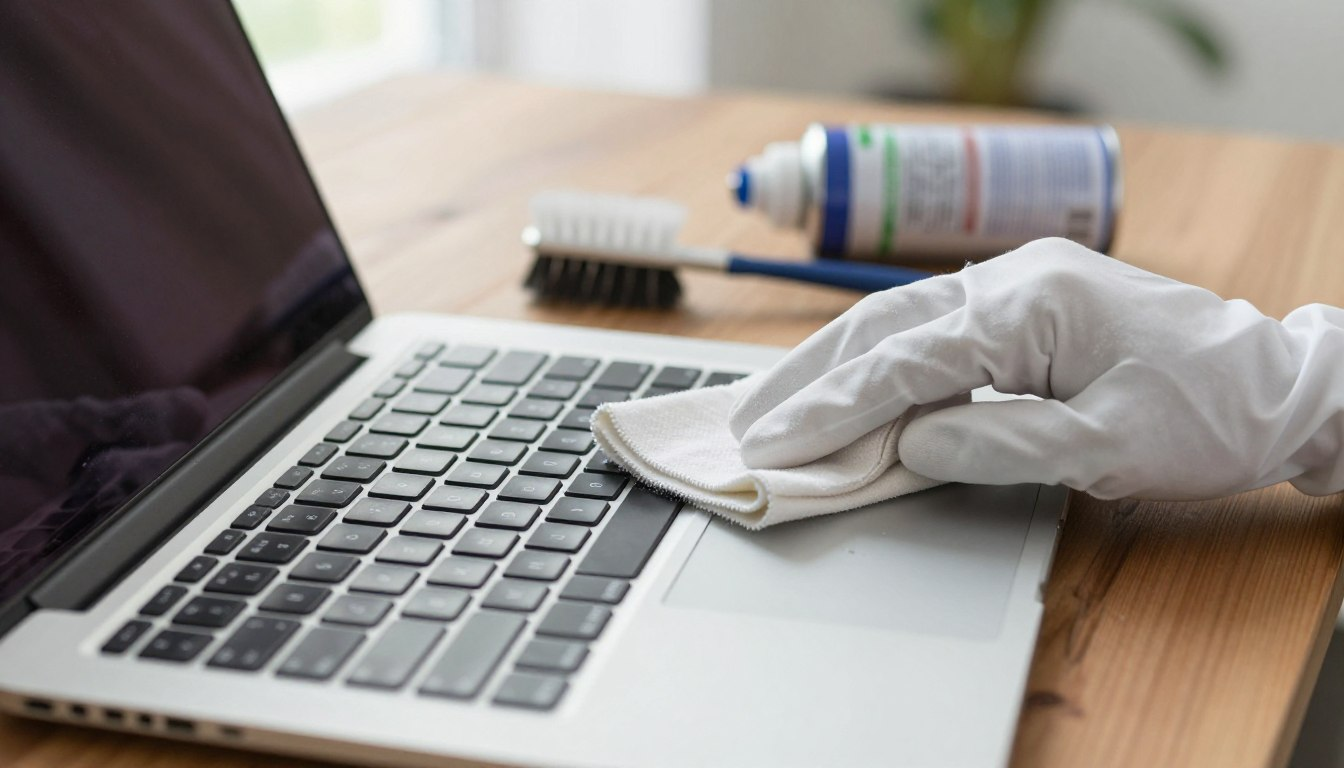
Prepare to be grossed out: did you know that the average computer keyboard can have more germs on it than a toilet seat? Eww! Every time you eat a snack while playing a game or doing homework, tiny crumbs and invisible oils from your fingers get trapped under the keys.
Over time, this turns your laptop into a sticky, germy mess. But don’t panic! You don’t need a hazmat suit to fix it. Learning how to clean a laptop keyboard safely: crumbs, germs, and sticky keys is a super easy and fun mission you can do right at home.
In this guide, we are going to teach you how to become a Tech Superhero. We will show you the exact tools to use, how to blast away the crumb monsters, and how to make your laptop look brand new again. Let’s get cleaning!
🧰 Your Superhero Cleaning Kit (The Essential Tools)

Before we start our mission, we need to gather our gear. You cannot use regular soap or wet paper towels on a computer (laptops hate swimming!). Here is what you need to grab with a parent’s help:
- The Magic Cape (Microfiber Cloth): A super soft cloth that traps dust without scratching your screen.
- The Germ Buster (70% Isopropyl Alcohol): This is special rubbing alcohol that cleans germs and dries super fast so it doesn’t break the computer.
- The Mini Mops (Cotton Swabs/Q-tips): Perfect for getting into the tiny, sticky corners of your keys.
- The Wind Tornado (Compressed Air): A can of air that blasts crumbs right out of their hiding spots!
| Cleaning Tool | What It Defeats | Safety Rule |
|---|---|---|
| Microfiber Cloth | Fingerprints and smudges | Keep it dry or only slightly damp. |
| Compressed Air | Hidden chip crumbs | Never shake the can while spraying! |
| Cotton Swabs | Sticky juice spots | Don’t press too hard on the keys. |
🛑 Step 1: Power Down (Safety First!)

If you wipe a keyboard while the laptop is turned on, you might accidentally type “ASDFGHJKL” and send it to your teacher! Even worse, cleaning a computer while it is plugged into the wall can cause a tiny electrical shock.
The Golden Rule: Always turn the laptop completely OFF and unplug the charger cable before you start cleaning. Unplug your mouse and headphones, too. Now your workspace is 100% safe.
🌪️ Step 2: Blasting the Crumb Monsters

It is time to learn exactly how to clean a laptop keyboard safely using your can of compressed air. This is the fun part!
- Ask a parent to help you open the laptop and tilt it slightly upside down (like a slide).
- Take your can of compressed air and attach the little plastic straw.
- Keep the can straight up! (If you tip the can upside down, freezing cold liquid will shoot out instead of air).
- Spray the keyboard in short, quick bursts, moving from the top row to the bottom. Watch all the hidden dust and crumbs fall out onto the table!
🦠 Step 3: Wiping Out Germs and Bacteria

Now that the crumbs are gone, we have to defeat the invisible germs. This is where your magic microfiber cloth and rubbing alcohol come in.
Warning: NEVER spray or pour liquid directly onto your laptop. If liquid sneaks under the keys, it can ruin the computer forever!
Instead, put a tiny splash of rubbing alcohol onto the cloth. The cloth should feel slightly damp, not dripping wet. Gently wipe the cloth over the tops of the keys, the spacebar, and the flat areas where your wrists rest. The alcohol will kill the germs and dry up in just a few seconds.
🍯 Step 4: Fixing Sticky Keys
Do you have a spacebar that feels like it is glued down? That is usually caused by spilled juice or sticky candy fingers. To fix it, we use our Mini Mops!
- Dip the tip of a cotton swab (Q-tip) into a tiny bit of rubbing alcohol.
- Rub it gently around the outside edges of the sticky key.
- Press the key up and down a few times to loosen the sticky slime.
- Repeat until the key bounces back perfectly!
⚠️ Why We NEVER Pop Off Laptop Keys
You might see videos online of people using butter knives to pop the keys off their big desktop keyboards to clean inside. Do not try this on a laptop!
Laptop keys are held down by tiny, super-fragile plastic clips that look like butterfly wings. If you try to pry a laptop key off, those clips will snap and break instantly. Once they break, the key will never snap back on, and your parents will have to take the laptop to a repair shop. Let the compressed air do the hard work instead!
🛡️ How to Keep Your Laptop Clean Forever
Congratulations, your laptop is now sparkling clean and germ-free! But how do we stop the crumb monsters from coming back? Follow these three simple rules for excellent laptop keyboard maintenance:
- The No-Snack Zone: Never eat chips, crackers, or cookies while typing. If you need a snack, step away from the computer!
- Wash Your Hands: Before you sit down to play Minecraft or do your homework, wash your hands with soap. Clean hands mean a clean keyboard.
- Use a Lid: When you are done using the laptop, simply close it! This stops everyday dust and pet hair from settling on the keys while you are asleep.
“Taking care of your tech means your tech will take care of you! A clean laptop runs faster, doesn’t overheat, and is way more fun to use.”
🎉 Conclusion
Cleaning your computer doesn’t have to be a boring chore. By knowing how to clean a laptop keyboard safely: crumbs, germs, and sticky keys, you become the ultimate protector of your tech!
Remember the golden rules: unplug the power, use compressed air to blast the crumbs, and use a barely-damp microfiber cloth to wipe away the germs. If you do this just once a month, your laptop will look brand new for years to come. Now, go give that dirty keyboard the superhero cleanup it deserves!
❓ Frequently Asked Questions (FAQ)
What can I use if I don’t have a can of compressed air?
If you don’t have an air blaster, you can use a clean, dry, soft-bristled paintbrush or a clean makeup brush! Tilt the laptop sideways and gently brush the keys to sweep the crumbs out of the cracks.
Can I use regular wet wipes or baby wipes on my keyboard?
Most baby wipes have lotions in them that will make your keys greasy. Clorox or Lysol disinfectant wipes are okay, BUT you must squeeze them out first! If the wipe is dripping wet, the liquid will squeeze out and break the electronics inside.
Why can’t I use water to clean my sticky keys?
Water and electricity are worst enemies! Water takes a very long time to dry, which causes the metal inside the laptop to rust. Rubbing alcohol (70% Isopropyl) is safe because it evaporates into the air almost instantly.
Can I use a normal vacuum cleaner to suck up the crumbs?
Please don’t! A big household vacuum cleaner can create static electricity, which acts like a tiny lightning bolt that can fry the computer’s brain. Stick to compressed air or a soft brush.
What should I do if I accidentally spill a whole glass of water on my laptop?
Emergency mode! Turn it off immediately, unplug it from the wall, and turn the laptop upside down like a tent so the water drips out of the keyboard. Do NOT try to turn it back on. Call an adult and let the laptop dry for at least 48 hours before taking it to a repair shop.