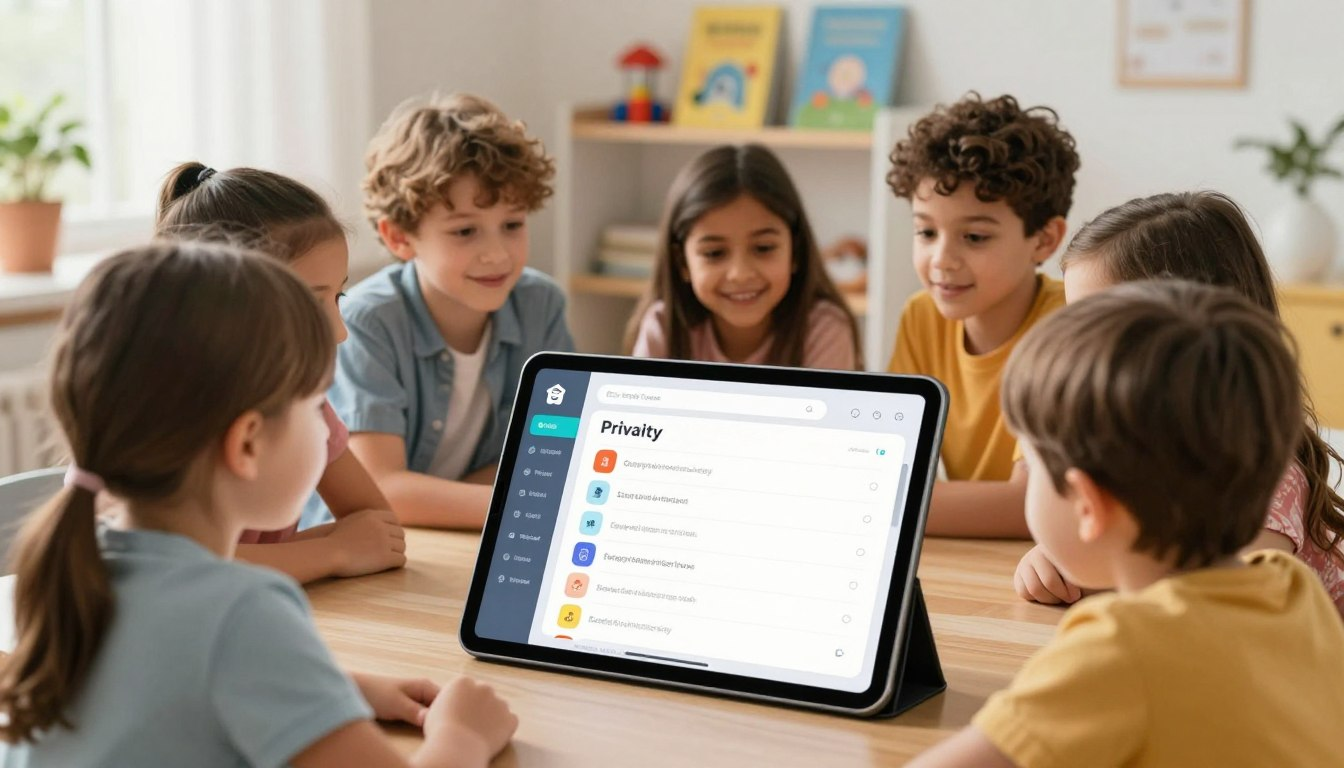
When a child installs a new app, the default settings are not always the safest settings. Some apps ask for location, camera, microphone, contacts, photos, direct messages, or public profile access before a parent has had time to review what the app actually needs.
This guide gives parents a practical privacy checklist for children’s accounts and new apps. It explains what to check before installing an app, which permissions to limit, how to manage messages and profiles, and what to review after the app has been used for a few days.
Privacy settings work best when children also understand basic safety rules. See our guide on internet safety rules for kids.
Do the first privacy check with your child sitting next to you. Instead of changing settings silently, explain why each choice matters: location shows where a person may be, camera and microphone can reveal private spaces, and public profiles may let strangers see activity. The goal is not to scare your child, but to teach them that apps should only get the access they truly need.
Why Privacy Settings Matter for Children’s Accounts
Children often tap through setup screens quickly because they want to start using the app. They may not understand that “Allow,” “Share,” “Public,” or “Sync Contacts” can change how much personal information the app can access.
Privacy settings help reduce unnecessary sharing. They can limit who sees a child’s profile, whether strangers can send messages, whether the app can track location, and whether the app can access photos, contacts, microphone, or camera.
No setting makes an app completely risk-free, but a careful setup gives your child a safer starting point and teaches a habit they will use as they get older: check before sharing.
Before Installing a New App
The best time to think about privacy is before the app is installed. Once a child starts using an app, it becomes harder to remove access, change habits, or explain why something is not allowed.
Check the Age Rating
Age ratings are a useful starting point, but they are not the full decision. A child may meet the age rating and still not be ready for open chat, public posting, live comments, friend requests, or in-app purchases.
Look beyond the number. Ask what the app allows a child to do. Can they contact strangers? Can strangers contact them? Can they post publicly? Can they spend money? Can they upload photos or videos? These questions matter more than the label alone.
Look at the Developer and App Purpose
A trustworthy app should make its purpose clear. A math practice app should not need the same access as a social media app. A drawing app should not need your child’s contact list. A reading app usually does not need exact location access.
Before installing, check whether the developer has clear support information, recent updates, and understandable privacy explanations. If the app feels unclear, overly aggressive with permissions, or difficult to research, slow down before allowing your child to use it.
Basic Privacy Checklist for New Apps
Use this checklist before your child starts using a new app. You do not need to understand every technical detail. The main idea is simple: allow only what the app truly needs.
- Check the app’s age rating and main features.
- Review whether the app has chat, comments, public profiles, or friend requests.
- Turn off location access unless the app genuinely needs it.
- Block camera and microphone access unless they are needed for the app’s purpose.
- Do not allow contacts access unless there is a clear reason.
- Set the profile to private, friends only, or approved contacts only.
- Turn off messages from strangers when the option exists.
- Disable in-app purchases or require parent approval.
- Use family safety tools such as Apple Screen Time or Google Family Link where appropriate.
- Review the app again after your child has used it for a few days.
Location Access: Usually Keep It Off
Location access is one of the most important settings to check. Some apps have a genuine reason to use location, such as maps or transportation tools used with a parent. But many games, learning apps, photo apps, and social apps do not need to know where a child is.
For children’s accounts, the safer choice is usually Never or Ask Next Time. If an app works without location, leave it off. If the app stops working and gives a clear reason, a parent can review the request later.
Exact location can reveal patterns about where a child lives, studies, or spends time. That information should be treated carefully.
Camera, Microphone, Photos, and Contacts
Apps often ask for access to camera, microphone, photos, or contacts during setup. Some requests are reasonable. A video call app needs camera and microphone. A photo editing app may need access to selected photos. But many apps ask for more than they need.
| Permission | Safer Choice | Why It Matters |
|---|---|---|
| Camera | Allow only when needed | Protects private spaces and prevents unnecessary recording access. |
| Microphone | Allow only for voice/video features | Prevents apps from having access when audio is not needed. |
| Photos | Allow selected photos when possible | Limits access to the whole photo library. |
| Contacts | Usually keep off | Protects other people’s names, phone numbers, and emails. |
| Location | Usually keep off | Reduces sharing of where the child is or may be. |
When a device offers “Allow Selected Photos,” use that instead of giving full photo library access. This gives the child the photo they need without opening every family photo to the app.
Profiles, Usernames, and Public Visibility
If an app has profiles, the first thing to check is who can see the account. Public profiles can show usernames, profile photos, posts, activity, achievements, comments, or friend lists. For children, private or friends-only settings are usually safer.
Choose a Safe Username
A child’s username should not include their full name, birth year, school name, home area, or phone number. A simple nickname or parent-approved username is safer than something like MiaSmith2016 or AdamClass4NorthSchool.
Use Private or Friends-Only Settings
Set the profile to private where possible. If the app allows followers, friend requests, or viewers, limit them to people your child knows in real life and that a parent has approved.
If an app does not allow privacy controls and encourages public posting, it may not be the right app for a younger child.
Messages, Comments, and Friend Requests
Communication features need extra attention. An app can be educational or creative and still have chat, comments, friend requests, or public replies that are not appropriate for a child to manage alone.
For younger children, turn off direct messages from strangers. If the app allows messages only from approved friends, use that setting. If messages cannot be limited, decide whether the app is necessary at all.
- Allow friend requests only from people the child knows in real life.
- Review new requests before accepting them.
- Turn off public comments if the option exists.
- Teach your child not to reply to unknown users.
- Ask your child to show a parent any message that feels strange, urgent, scary, or too personal.
In-App Purchases and Subscriptions
Many children’s apps are free to download but include paid upgrades, coins, skins, subscriptions, or extra content. Children may not understand that a small tap can lead to a real charge.
Use device-level settings to require parent approval for purchases. On Apple devices, Screen Time can restrict purchases. On Android devices, Google Play can require authentication for purchases. These settings are especially important on shared family devices.
Also explain the rule clearly: children should ask before buying anything inside an app, even if the app says the item is “limited,” “special,” or “almost gone.”
Use Family Safety Tools
Family safety tools can help parents manage apps more consistently across a device. They are not perfect, but they reduce the chance that a child installs or changes something without a parent noticing.
Apple Screen Time
On iPhone and iPad, Apple Screen Time can limit app installs, purchases, explicit content, communication, and screen time. Set a Screen Time passcode that is different from the device unlock code so a child cannot change the settings easily.
Google Family Link
Google Family Link helps parents manage a child’s Google account, app installs, screen time, and some content settings on Android devices and Chromebooks. It is useful for younger children who are still learning how app permissions work.
Even with family safety tools, check important app permissions manually. Some apps have their own privacy controls inside the app, separate from the device settings.
Try This Together: The New App Privacy Check
The next time your child wants to install a new app, use it as a short teaching moment. Sit together and walk through the setup before the app is used.
- Read the app name and purpose together.
- Check the age rating and whether the app has chat, public profiles, or purchases.
- Open the device permission screen.
- Turn off location unless the app clearly needs it.
- Allow camera, microphone, or photos only if they are necessary.
- Set the profile to private or friends only.
- Turn off messages from strangers if possible.
- Review the rules: ask before sharing, buying, posting, or replying to unknown people.
This routine does not need to be long. The important part is that your child sees privacy as a normal step before using a new app, not as something only parents worry about later.
Common Mistakes to Avoid
- Tapping Allow without reading. Children often accept permissions quickly. Slow the process down and explain what each permission means.
- Using a full name or birth year in the username. Usernames should not reveal personal details.
- Leaving profiles public by default. Public profiles may expose activity, posts, or friend lists to strangers.
- Allowing open direct messages. Children should not receive private messages from unknown users.
- Forgetting in-app purchases. Disable purchases or require parent approval before the child uses the app.
- Assuming child-friendly means privacy-friendly. An app can look cute or educational and still ask for unnecessary data.
- Not checking after updates. New app features can add new settings, so privacy should be reviewed again when an app changes.
Parent Checklist
- Have you checked the app’s age rating and main features?
- Does the app have chat, comments, public profiles, or friend requests?
- Is location access turned off unless clearly needed?
- Are camera, microphone, photos, and contacts limited to what the app actually needs?
- Is the profile private or limited to approved friends?
- Are messages from strangers turned off where possible?
- Are in-app purchases disabled or protected by parent approval?
- Is a family safety tool such as Screen Time or Family Link active if needed?
- Does your child know to ask before posting, buying, replying, or sharing personal information?
- Have you reviewed the app again after a few days of use?
Frequently Asked Questions
What privacy settings should parents check first on a child’s app?
Start with location, profile visibility, direct messages, camera, microphone, photos, contacts, and in-app purchases. These settings are the most likely to affect a child’s privacy or safety.
Should kids apps have location access?
Most children’s apps do not need location access. Leave it off unless the app has a clear, parent-approved reason to use it. Games, reading apps, drawing apps, and many learning apps usually work without exact location access.
Are parental controls enough by themselves?
No. Parental controls are helpful, but children also need simple explanations and family rules. They should know why privacy matters and when to ask a parent before sharing, posting, clicking, or replying.
How often should privacy settings be reviewed?
Review settings when an app is first installed, after major updates, and whenever the app adds new features. It is also useful to check important apps occasionally, especially ones with chat, posting, location, or purchases.
What should I do if an app asks for too many permissions?
Deny the permission if the app still works without it. If the app requires access that does not match its purpose, look for a safer alternative. A child’s app should not need private data that has nothing to do with the activity it provides.
Privacy settings are not only technical switches. They are small decisions that teach children how to protect their information. When a parent checks a new app with a child, the child learns to pause, ask what the app really needs, and share less by default.
Last reviewed: May 2026. App menus, privacy settings, and family safety tools can change over time. If a step looks different on your device, check the help page for the exact app, device, or account your child uses.
If your child uses YouTube, check our guide on safe YouTube settings for kids to reduce distractions and improve account safety.