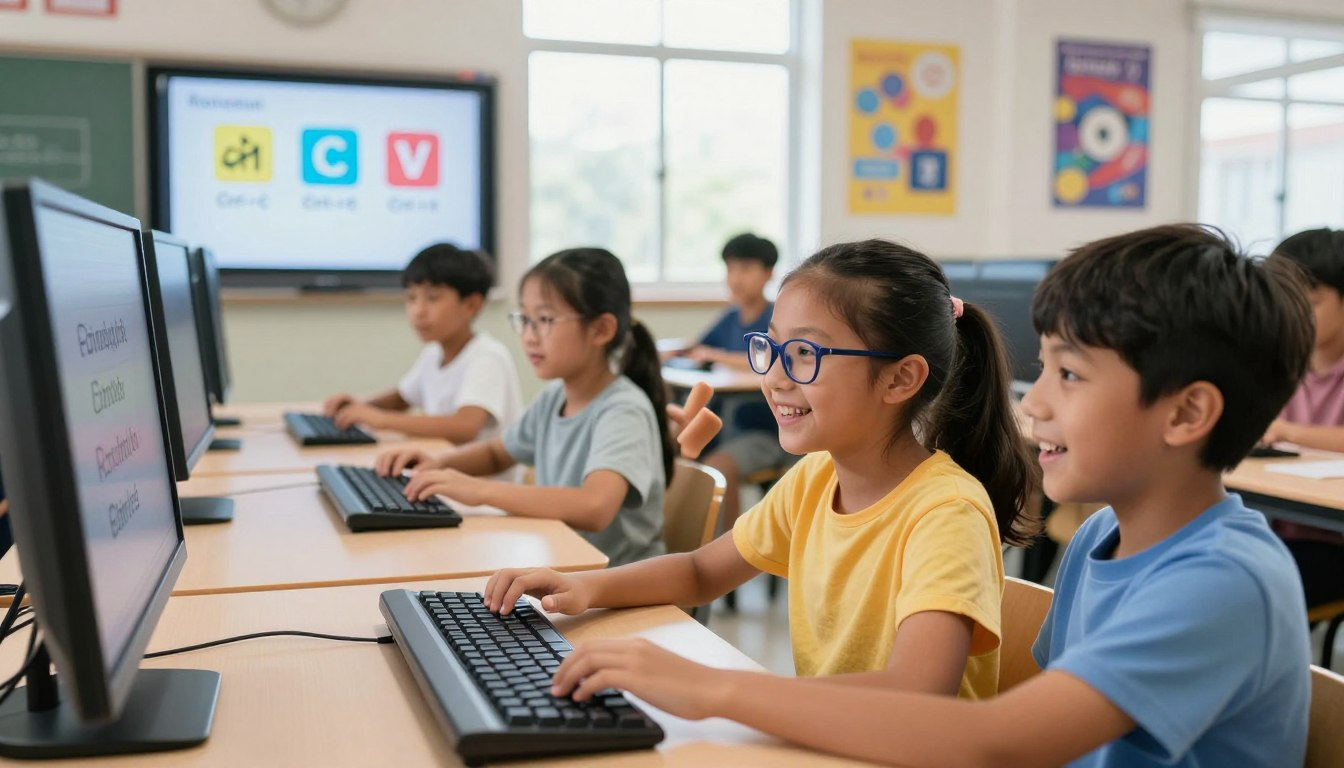
If you only use the mouse or trackpad to click around the screen, you are missing out on a huge digital superpower. Keyboard shortcuts for kids are exactly like cheat codes in a video game. They are secret button combinations that let you tell the computer what to do in a fraction of a second.
Whether you’re writing a story, building a school presentation, or just browsing the web, mastering these child-friendly keyboard hotkeys will save you hours of time over the school year. Let’s dive into the ultimate list of 15 shortcuts every digital ninja needs to know!
🎮 Why Are Keyboard Shortcuts So Awesome?
Before we learn the codes, why should we care? Teaching your child easy keyboard shortcuts boosts their digital confidence. Instead of slowly dragging the mouse to the top of the screen to click “Edit” and then “Copy,” their fingers can do the job instantly without looking.
This means less frustration, faster typing, and more time for the fun stuff! Plus, learning these skills now prepares kids for high school, college, and future careers where tech skills are super important.
🪄 Level 1: The “Oops!” and “Copycat” Keys
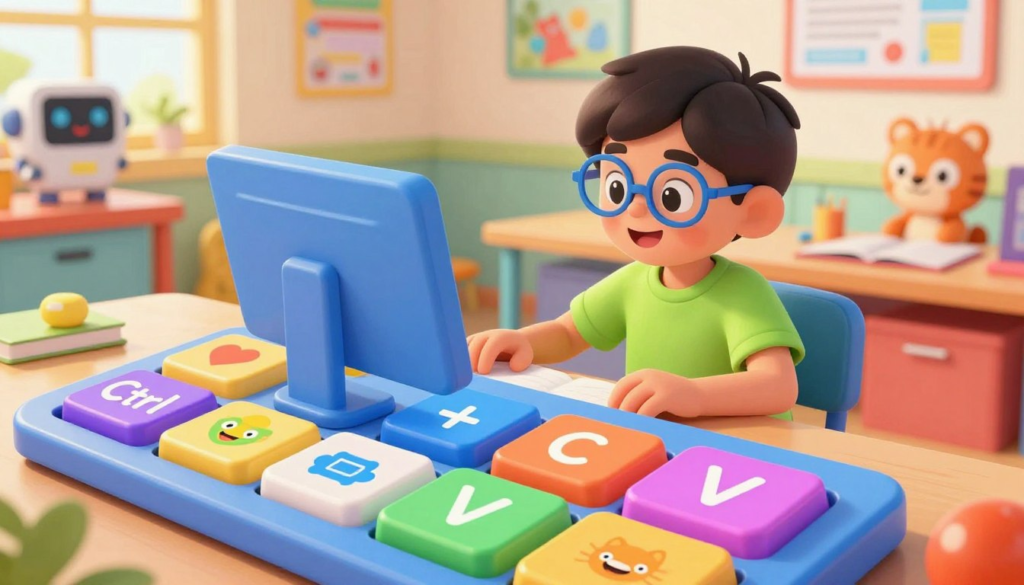
These are the very first shortcuts everyone should learn. They are the absolute basics of moving things around on your screen! (Note: If you use a Mac, just press the Cmd key instead of the Ctrl key!)
1. The Copycat: Copy (Ctrl + C)
Highlight a word or a picture, press Ctrl + C, and the computer magically memorizes it. It’s like taking a digital photograph of your work so you can put it somewhere else.
2. The Stamper: Paste (Ctrl + V)
Once you “Copy” something, move your mouse where you want it to go and press Ctrl + V. Boom! It appears. You can do this as many times as you want.
3. The Mover: Cut (Ctrl + X)
Want to move a sentence to a new paragraph without typing it all over again? Highlight it and press Ctrl + X. It vanishes from its original spot and waits invisibly until you hit Paste (Ctrl + V)!
4. The Time Machine: Undo (Ctrl + Z)
Did you just accidentally delete your whole essay? DON’T PANIC! Press Ctrl + Z to turn back time. This is the greatest lifesaver on the whole keyboard.
5. The “Never Mind”: Redo (Ctrl + Y)
If you pressed Undo (Ctrl + Z) but then realized you actually liked what you had, press Ctrl + Y to bring it right back.
🎒 Level 2: The Homework Heroes
When it’s time to tackle Google Docs, Word, or an online assignment, these shortcuts will make your work stand out and keep it safe from crashing computers.
6. The Vault: Save (Ctrl + S)
Get into the habit of pressing Ctrl + S every few minutes while you work. If the internet goes down or the battery dies, your hard work will be locked in the vault, safe and sound!
7. The Big Grab: Select All (Ctrl + A)
Need to change the font size of your whole document? Don’t spend forever dragging the mouse down the page. Press Ctrl + A and the computer highlights everything instantly.
8. The Detective: Find (Ctrl + F)
Reading a super long article about dinosaurs and only want to find the part about the T-Rex? Press Ctrl + F, type “T-Rex,” and the computer will highlight that exact word on the page!
9. The Paper Maker: Print (Ctrl + P)
When your masterpiece is finished and ready for the fridge or your teacher’s desk, hit Ctrl + P to instantly open the printer menu.
10. The Highlighter: Bold Text (Ctrl + B)
Want to make a title stand out? Highlight the word and press Ctrl + B to make it super thick and bold! (Bonus trick: Ctrl + I makes it italic, and Ctrl + U underlines it!)
🌐 Level 3: Web Surfing Speedsters
Surfing the internet is much cooler when you don’t have to aim for those tiny little buttons at the top of your web browser.
| Shortcut # | Action | Windows | Mac |
|---|---|---|---|
| 11 | Open a New Tab | Ctrl + T | Cmd + T |
| 12 | Close Current Tab | Ctrl + W | Cmd + W |
| 13 | Refresh a Frozen Page | Ctrl + R (or F5) | Cmd + R |
| 14 | Re-open a Closed Tab | Ctrl + Shift + T | Cmd + Shift + T |
Pro Tip for #14: Did you accidentally close out of your YouTube video or research page? Pressing Ctrl + Shift + T brings the last tab you closed right back from the dead!
🚀 Level 4: The Fun “Hacker” Moves
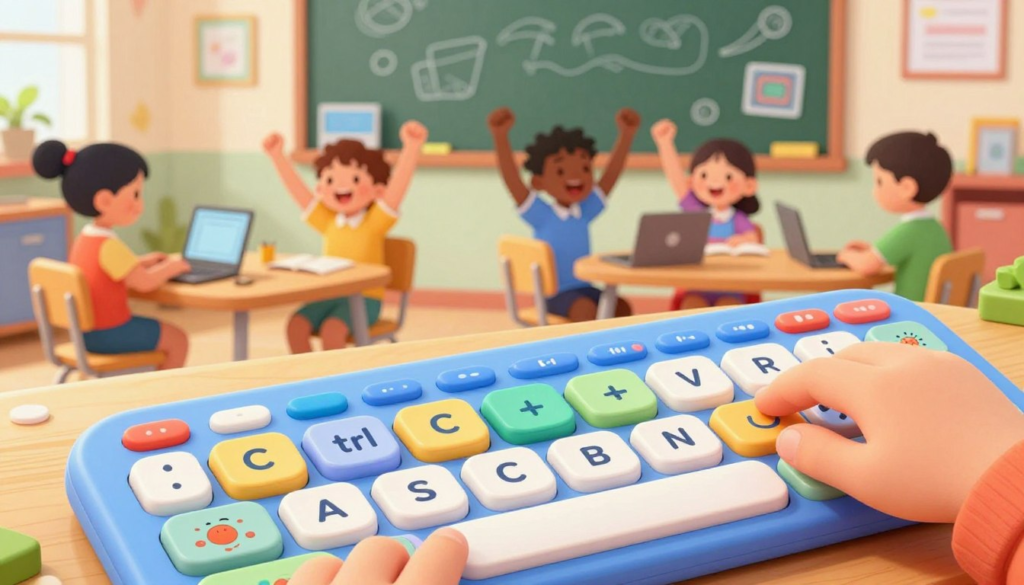
Ready to look like an absolute tech genius to your parents and friends? Try these final two shortcuts to master your device.
15. The Screen Snapper: Screenshot
If you see something cool online or want to show your teacher an error message, you can take a picture of your screen!
- On Windows: Press Windows Key + Shift + S. The screen will go dark, and you can draw a box over whatever you want to capture!
- On Mac: Press Cmd + Shift + 4 to do the exact same thing!
Bonus: The Magnifying Glass (Zoom In/Out)
Is the writing on a website too tiny to read? Hold down the Ctrl key and press the Plus (+) key to zoom in and make everything massive! Press Ctrl and the Minus (-) key to shrink it back down.
🎉 Conclusion
Learning these 15 keyboard shortcuts is like getting a massive upgrade to your computer. The best way to learn them is to pick just one or two a day. Write them on a sticky note and put it on your monitor. Before you know it, your fingers will be dancing across the keyboard, saving you tons of time on your schoolwork!
So, which shortcut are you going to try first? Try using the Time Machine (Ctrl + Z) today!
❓ Frequently Asked Questions (FAQ)
What are the best keyboard shortcuts for kids to start with?
Start with the classics: Copy (Ctrl + C), Paste (Ctrl + V), and the life-saving Undo (Ctrl + Z). They are easy to remember and kids will use them every single time they write or draw on the computer.
Are there specific child-friendly keyboard shortcuts for school?
Yes! Encourage kids to use Ctrl + S (Save) often so they don’t lose their homework, and Ctrl + F (Find) to easily locate keywords when researching big topics in Google Docs or web pages.
Where can I find interactive games to practice these shortcuts?
Websites like TypingClub or BBC Dance Mat Typing focus on keyboard familiarity. To practice shortcuts, you can open a blank document and play “Simon Says” with your child! (e.g., “Simon says type your name, now highlight it, now press Ctrl+B to bold it!”)
Are these computer shortcuts the same on all computers?
Mostly! The letters stay the exact same. The only difference is that Windows PCs and Chromebooks use the Ctrl (Control) key, while Apple Mac computers use the Cmd (Command) key.
Can fun shortcut keys help with creativity?
Absolutely! The screenshot shortcut (Win + Shift + S) lets kids safely capture their digital art, coding projects, or Minecraft creations to share with family without needing external software.