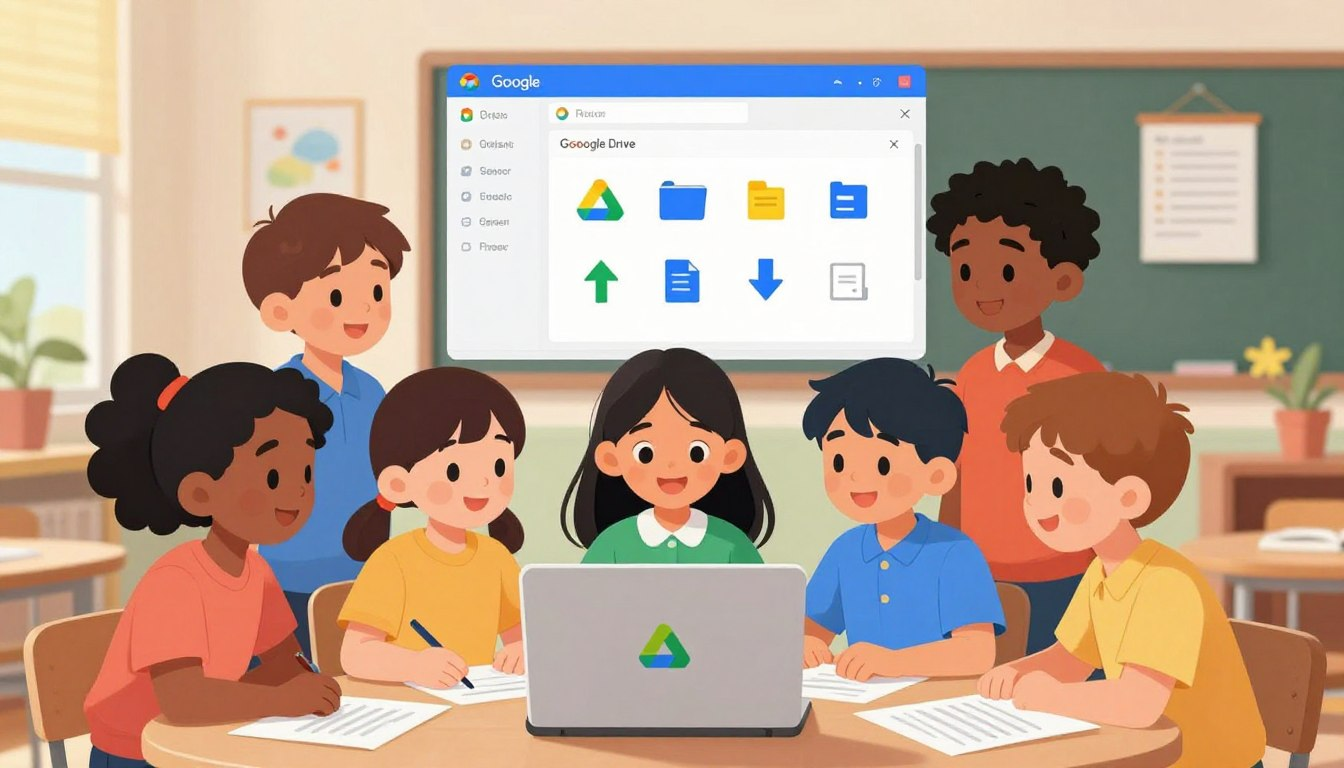
Many schools now ask students to submit homework online — through Google Classroom, Canvas, Schoology, or another school portal. For a child doing this for the first time, the process has more steps than it looks: saving the file, finding it, naming it, attaching it to the right assignment, and confirming it actually went through. Missing any one of those steps can mean the teacher never receives the work.
This guide walks parents through each part of that process. The goal is to go through it together the first time, so your child understands what they are doing and why — not just which buttons to click.
Before starting, check which platform your child’s school uses — Google Classroom, Canvas, Schoology, and Seesaw are the most common. Also confirm that your child is signed into their school-issued account, not a personal or family Gmail account. Submitting from the wrong account is a common reason a teacher may not receive a student’s work.
What Uploading Actually Means
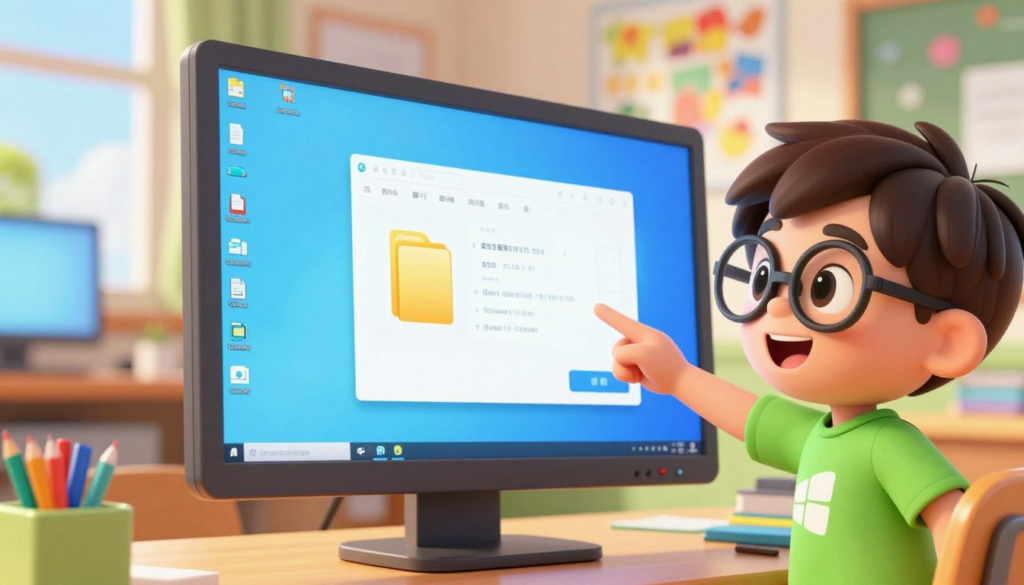
Uploading means sending a copy of a file from your device to somewhere on the internet — a cloud storage folder or a teacher’s assignment inbox. The file stays on your device. What gets sent is a copy.
One thing worth clarifying early: saving and uploading are not the same thing. Saving keeps the file on the device. Uploading sends it somewhere else. A child can have a perfectly finished assignment saved on their laptop and still have the teacher receive nothing, because the upload step was skipped.
Step 1: Save the File and Find It
The homework needs to be fully saved before it can be uploaded. In most programs, pressing Ctrl+S on Windows or Command+S on a Mac saves the file. In Google Docs, look for the “All changes saved” message near the top of the screen — if it says “Saving…” wait a moment before doing anything else.
Once saved, help your child locate the file. On a Windows computer, check the Documents or Downloads folder. On a Chromebook, open the Files app and look under My Files or Google Drive. On a tablet, the file is usually inside the app that was used to create it — Google Docs, Pages, or a school app.
If your child is not sure where the file went after saving, right-click it in the recent files list and choose “Open file location” — this shows exactly which folder it is stored in.
Step 2: Name the File Before Uploading
Teachers receive files from every student in a class. A file called “document1.docx” or “homework.pdf” is difficult to identify and easy to overlook. Renaming the file takes ten seconds and makes a real difference.
A simple format works well: FirstName_LastName_Assignment. For example: Mia_Torres_ReadingLog_Week4.pdf. To rename a file, right-click it and choose Rename, then type the new name and press Enter.
If your child has trouble finding the file before uploading, start with our guide on how kids can save a file on Windows.
Step 3: Upload the File to Google Drive
Google Drive is the storage space connected to a Google account. If your child’s school uses Google Classroom, their Drive is where most assignment files are kept and accessed from.
Using the + New Button
- Open a browser, go to drive.google.com, and confirm the school account is active in the top-right corner.
- Click + New on the left side of the screen.
- Select File upload.
- Navigate to the folder where the homework file is saved, click the file once to select it, then click Open.
- Wait for the upload progress bar at the bottom of the screen to complete. When it says “Upload complete,” the file is in Drive.
Using Drag and Drop
On a laptop or desktop, drag and drop is faster. Resize the browser window so you can see both the Google Drive page and the folder where the file is saved. Click the file, hold the mouse button, drag it into the Drive window, and release. It uploads automatically. This method works well once children are comfortable navigating folders.
Keeping Drive Organized
Uploading everything into the main Drive folder works, but it becomes hard to navigate quickly. Help your child create one folder per subject — Math, Reading, Science — at the start of the school year. To make a folder, click + New and choose New folder. It takes less than a minute and makes finding past work much easier later.
Step 4: Submit the Assignment Through the School Portal
Uploading to Google Drive saves the file — it does not submit it to the teacher. Those are two separate actions. To turn in the assignment for a grade, your child needs to go through the school’s platform.
Google Classroom
- Go to classroom.google.com and sign in with the school account.
- Open the correct class, then click Classwork at the top.
- Find and click the assignment to open it.
- Click Add or Create, then choose Google Drive to attach a file already in Drive, or File to upload directly from the device.
- Select the homework file and wait for it to attach.
- Click Turn In and wait for the confirmation. The assignment status should change to “Turned in.”
Canvas
Open the assignment, scroll to the submission area, and click Submit Assignment. Select the File Upload tab, click Choose File, select the homework file from the correct folder, and click Submit Assignment. Wait for the confirmation screen before closing the tab.
Schoology
Open the assignment and look for the Add Submission button. Click it, choose the file upload option, select the homework file, and submit. The assignment page should reflect the submission once it goes through.
Always Wait for Confirmation
After clicking Turn In or Submit, do not close the browser tab until a confirmation message appears. It may say “Turned in,” show a green checkmark, or change the assignment status. If the page refreshes with no visible change, the submission may not have completed. Closing the browser too early during the upload is one of the most common reasons assignments do not reach the teacher.
For assignments written in Google Docs, you may also find our guide on Google Docs for kids helpful before your child turns in the final file.
Keeping It Safe: What Children Should Know Before Uploading
Children should only upload homework through their official school account and the platforms the school has provided. They should not email files to addresses they do not recognize, and should not submit work through any link that did not come from the teacher or the school portal directly.
Before uploading any file, it is also worth checking that it does not contain personal information — home address, phone number, or family photos — unless the assignment specifically calls for it and a parent has reviewed it first.
Try This at Home: The Practice Upload
Do a dry run before the first real assignment is due. Have your child draw something on paper, take a photo of it, rename the photo file using the FirstName_LastName format, and upload it into a Google Drive folder called “Practice.” Then open the uploaded file to confirm it looks correct. This short practice task removes much of the uncertainty from the first real submission. If your child’s teacher offers a practice assignment at the start of the year, take it — it is worth doing even if your child already feels confident.
Common Mistakes to Avoid
- Uploading to Drive but not submitting to the teacher. These are two separate steps. A file sitting in Google Drive is not submitted until it is attached inside the school platform and the Turn In button is clicked.
- Closing the browser before the upload finishes. Uploads need a few seconds to complete. Always wait for the confirmation message before navigating away.
- Using the wrong account. Submitting from a personal Gmail account means the teacher likely will not see it. Check the account shown in the top-right corner of the screen before starting.
- Not saving before uploading. If the document was still open and unsaved when the upload happened, an incomplete or blank version may have been sent. In Google Docs, confirm “All changes saved” appears before submitting.
- Vague file names. A file called “untitled” is hard to identify and easy to lose in a folder of hundreds of submissions. Naming the file with the student’s name and assignment title takes seconds and avoids confusion on both ends.
When Something Goes Wrong
If the file is genuinely too large — common with video projects or image-heavy documents — ask a parent to help. The best fix may be exporting a smaller PDF, reducing image size, or following the teacher’s instructions for large files.
If your child submitted the wrong file, most platforms allow them to unsubmit, swap the file, and resubmit before the deadline. In Google Classroom, they can reopen the assignment and look for an Unsubmit option. Act quickly — some teachers lock submissions at the due time.
Parent Checklist
- Can your child save a file and locate it in the correct folder afterward?
- Do they know how to rename a file before uploading?
- Can they upload a file to Google Drive using the + New button?
- Do they understand that uploading to Drive is not the same as submitting to the teacher?
- Can they find an assignment in the school portal, attach a file, and click Turn In?
- Do they wait for a confirmation message before closing the browser?
- Are they signed into their school account — not a personal one — when submitting?
- Do they know to ask a parent before uploading any file containing personal information?
Once your child has gone through these steps a few times, submitting homework online stops being something to worry about. The process becomes quick and predictable — and the days of “I forgot to hand it in” become a lot less frequent.
Last reviewed: May 2026. School portals, Google Drive menus, and classroom platforms can change over time, so parents should follow the teacher’s instructions if a step looks different.