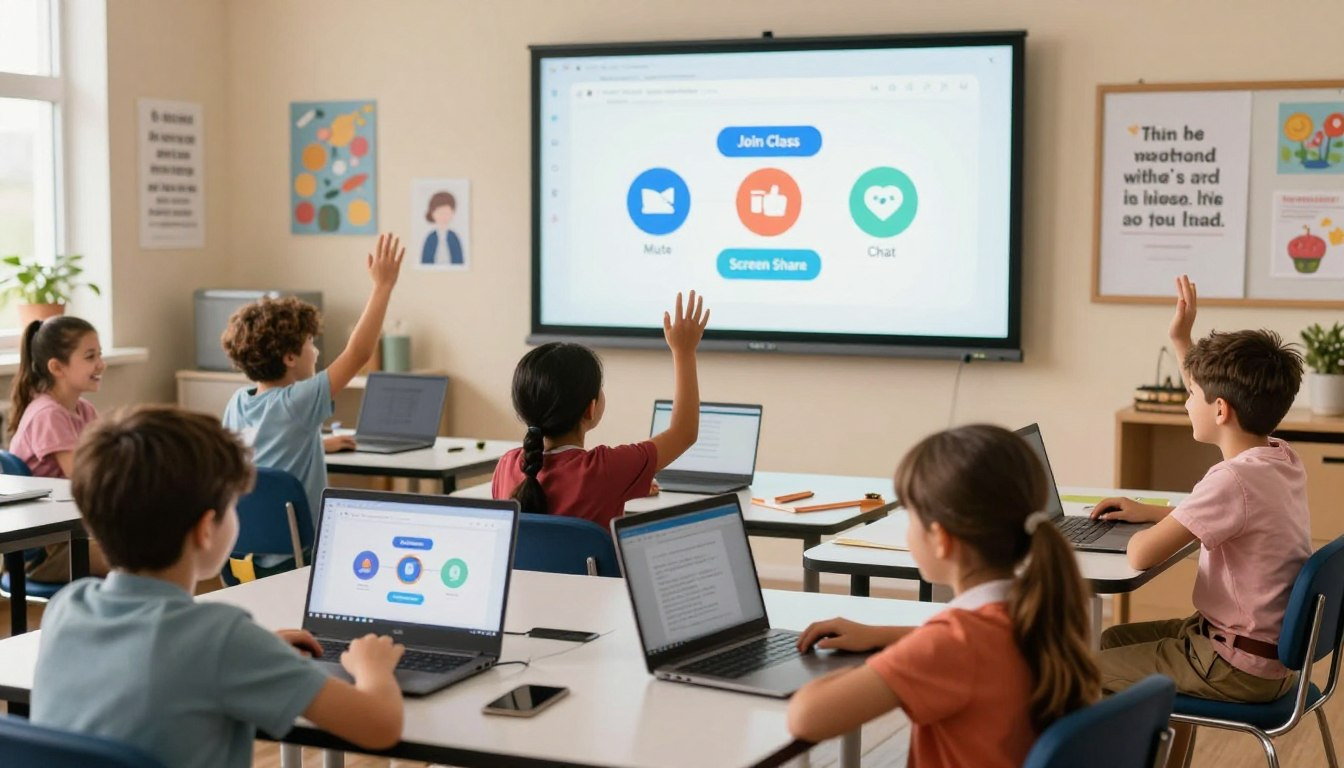
Remember when going to school meant grabbing your backpack and running to catch the yellow bus? Today, your classroom might just be inside your computer! Virtual learning is amazing, but a screen full of buttons can feel a little confusing at first.
Whether you are learning math, presenting a science project, or just saying hi to your classmates, learning how to use Zoom for kids: join class, mute, chat, and screen rules is your ultimate digital superpower.
In this fun and easy guide, we are going to turn you into a Zoom Ninja. We will show you exactly how to get your camera working, how to use the secret spacebar trick, and how to be the best digital student in your class. Let’s get started!
🚀 Getting Started: Preparing for Virtual Learning

Before you can join the fun, you need to make sure your spaceship (your computer or tablet) is ready for launch. This quick Zoom tutorial for kids will get your tech set up perfectly.
Downloading the Zoom App
While you can use Zoom on a web browser, downloading the actual Zoom app is much better. It makes your video smoother and gives you access to cool features like virtual backgrounds!
- Ask a parent to help you visit the official Zoom website or the App Store.
- Download the free “Zoom Client for Meetings” application.
- Open the app and let it install on your device.
Logging into Your Student Account
Many schools provide a special email address just for students. If your teacher gave you a school login, always use that one! A dedicated student account keeps your schoolwork safe and separate from your personal games and apps.
The Pre-Flight Tech Check
There is nothing worse than talking to your teacher and realizing your microphone is broken! Always do a quick check before class begins:
- 🎤 Microphone Check: Speak out loud and watch for the little green bar in the audio settings to bounce up and down.
- 🔊 Speaker Check: Play the test sound to make sure you can hear your teacher clearly.
- 📸 Camera Check: Look at your video feed. Are you in the middle of the screen? Is your face bright enough to see?
🚪 How to Join Your Virtual Classroom

It is time for class! There are a couple of different ways your teacher might invite you into the meeting. Here is how to handle both of them like a pro.
The Magic Link Method
The easiest way to join is by clicking a direct link. Your teacher will usually post a blue link in Google Classroom or send it in an email.
- Simply click the blue link.
- A pop-up will ask, “Open Zoom Meetings?” Click Yes or Open.
- You will be zoomed right into class!
The Secret Code Method (ID and Passcode)
Sometimes, you have to type your way in. Open the Zoom app and click the big Join button. You will be asked to type in a Meeting ID (a long string of numbers) and a secret Passcode. Type them carefully, and make sure to put your real first name in the name box so your teacher knows it is you!
The Digital Waiting Room
After you join, you might see a white screen that says, “Please wait, the meeting host will let you in soon.” Don’t panic! This is the virtual waiting room.
Think of this as the hallway right outside your real classroom. Your teacher is just getting things ready and checking the names to make sure only students come in. Stay patient, grab a pencil, and wait for the screen to open.
🤫 Mastering the Mute Button (Ninja Silence)

If 25 kids are all talking, breathing, and typing at the exact same time, the digital classroom gets super loud! Learning to control your microphone is the most important rule of Zoom.
Where is the Microphone?
Look at the very bottom left corner of your Zoom screen. You will see a little icon shaped like a microphone.
If there is a red line slicing through it, you are muted (nobody can hear you). If there is no red line, your microphone is “live” and everyone can hear your dog barking in the background!
The Secret “Walkie-Talkie” Spacebar Trick
Here is a secret trick the pros use: If you are muted but the teacher suddenly calls on you, you don’t need to panic and click the mouse. Just press and hold the Spacebar on your keyboard!
As long as you hold the spacebar down, you are unmuted—just like a walkie-talkie. When you are done talking, let go of the spacebar, and you are instantly safely muted again.
| Button Action | What It Means | What You See |
|---|---|---|
| Muted | Ninja Silence (Nobody hears you) | A red line across the microphone |
| Unmuted | Live Audio (Everyone hears you) | A green bouncing microphone |
| Spacebar Trick | Push-to-Talk (Walkie-Talkie mode) | Temporary unmute while holding |
📸 Looking Great: Video and Camera Rules

Right next to the microphone icon is the Start/Stop Video button. Teachers usually love it when your camera is turned on because they can see your smiling face and know you are paying attention!
Using Fun (But Safe) Virtual Backgrounds
Don’t want the whole class to see your messy bedroom? You can use a Virtual Background! Click the tiny arrow next to the video button and select “Choose Virtual Background.”
“Pro-Tip: Virtual backgrounds are awesome, but make sure you pick one that isn’t distracting! A picture of outer space is cool, but a flashing, moving GIF will distract the whole class.”
The “Eye Level” Camera Trick
If your laptop is sitting flat on your desk, the camera is probably pointing right up your nose! Try stacking a few large books under your laptop until the camera is right at your eye level. This makes you look super professional.
💬 The Chat Box: How to Text in Class
At the bottom of your screen is a button called Chat (it looks like a speech bubble). If you click it, a text box opens on the side of your screen. This is a great place to type a question if your teacher is in the middle of talking.
Everyone vs. Direct Message
Be very careful before you hit enter! Look at the blue “To:” button above where you type.
- If it says Everyone, the entire class will see your message.
- If you click it and select your Teacher’s Name, only your teacher will see it (this is called a Direct Message).
Remember: The chat box is for class questions only. It is not for sending silly memes or talking about video games with your friends during a math lesson!
👍 Emojis and Raising Your Digital Hand
Want to answer a question without shouting? Click the Reactions button on the bottom menu!
Raise Your Hand
If you click Raise Hand, a little hand icon will magically appear on your video square. It sends a silent ping to your teacher, letting them know you want a turn to speak. Don’t forget to click Lower Hand when you are done!
Quick Emojis
If your teacher asks, “Does everyone understand the homework?”, you can click the Thumbs Up emoji or the green Yes checkmark to answer instantly without unmuting yourself.
📺 Screen Views: The “Brady Bunch” Grid
Did you know you can change how your classroom looks on your screen? Look in the top right corner for the View button.
| View Mode | What it Looks Like | Best Time to Use It |
|---|---|---|
| Speaker View | The person talking becomes giant on the screen. | When the teacher is giving a big lesson. |
| Gallery View | Looks like a grid of squares (like a giant checkerboard!). | When you want to see all your friends at once. |
| Full Screen | Hides your computer desktop completely. | When you need to block out distractions. |
👔 Zoom Etiquette: Rules of the Digital Classroom
Just because you are sitting in your living room doesn’t mean you aren’t in school! Here are the golden rules for virtual learning:
- Get Dressed: Please, no pajamas! Wear real clothes just like you would to a real school. It actually helps your brain wake up.
- Find a Quiet Desk: Don’t sit in the middle of a loud kitchen or on a bouncy bed. Sit at a real desk or table where you can put your computer down flat.
- Close the Games: It is super tempting to open Minecraft or Roblox in another window while the teacher is talking. Don’t do it! Multitasking hurts your brain’s ability to learn.
🔒 Staying Safe on Zoom
Safety first! Just like you look both ways before crossing the street, you need to be safe in a digital classroom.
Keep Links Top Secret
Never, ever share your classroom Zoom link or passcode on public video games, YouTube comments, or social media. That link is a private key just for you and your classmates.
Stranger Danger
If someone you do not recognize suddenly joins the Zoom class and starts acting weird, tell your parents immediately and let your teacher handle it. Never type your home address or passwords into the Zoom chat box!
🛠️ Troubleshooting: How to Fix Broken Tech
Computers glitch sometimes. It is totally normal! If things go wrong, stay calm and try these quick fixes:
“I Can’t Hear Anything!”
If the teacher’s mouth is moving but there is no sound, check your computer’s main volume buttons. Next, click the little arrow next to the Zoom Microphone icon and click “Test Speaker & Microphone” to see if your headphones are plugged in right.
“My Screen is Frozen!”
If everyone suddenly freezes like statues, your internet is probably lagging. Try clicking Stop Video for a minute to save bandwidth. If Zoom kicks you out completely, don’t panic! Just go back and click the original class link to rejoin.
🎉 Conclusion: You Are Ready for Class!
You did it! You have officially mastered the digital classroom. By knowing how to mute yourself, raise your digital hand, and use the chat box respectfully, you are going to be a superstar student.
The best way to get comfortable with Zoom is to practice. Ask your parents if you can set up a quick 5-minute practice meeting with them so you can test out the buttons, try a fun background, and master that spacebar trick before the real school day begins!
❓ Frequently Asked Questions (FAQ)
What is the easiest way to join a class using Zoom instructions for kids?
The fastest way is to simply click the blue meeting link sent by your teacher in Google Classroom or your email! If that doesn’t work, open the Zoom app, click the big “Join” button, and type in the Meeting ID and Passcode your teacher gave you.
How does the spacebar trick work for unmuting?
It is like a walkie-talkie! If you are muted, just press and hold the spacebar on your keyboard. As long as you hold it down, you are unmuted and can talk. When you let go, you are safely muted again.
How can I ask a question without interrupting the teacher?
Click the “Reactions” button (the smiley face on the bottom toolbar) and select “Raise Hand.” A little hand icon will appear on your video, and your teacher will get a notification that you have a question!
Can I hide my messy bedroom during a class?
Yes! Click the small arrow next to the “Start Video” button and select “Choose Virtual Background.” You can blur out your real room or pick a fun picture (like a cool library or a solid color) to hide your background entirely.
What should I do if Zoom kicks me out of the meeting?
Don’t panic! Sometimes the internet just glitches. Simply go back to your email or school portal and click the original class link again. You will pop back into the waiting room, and your teacher will let you right back in.