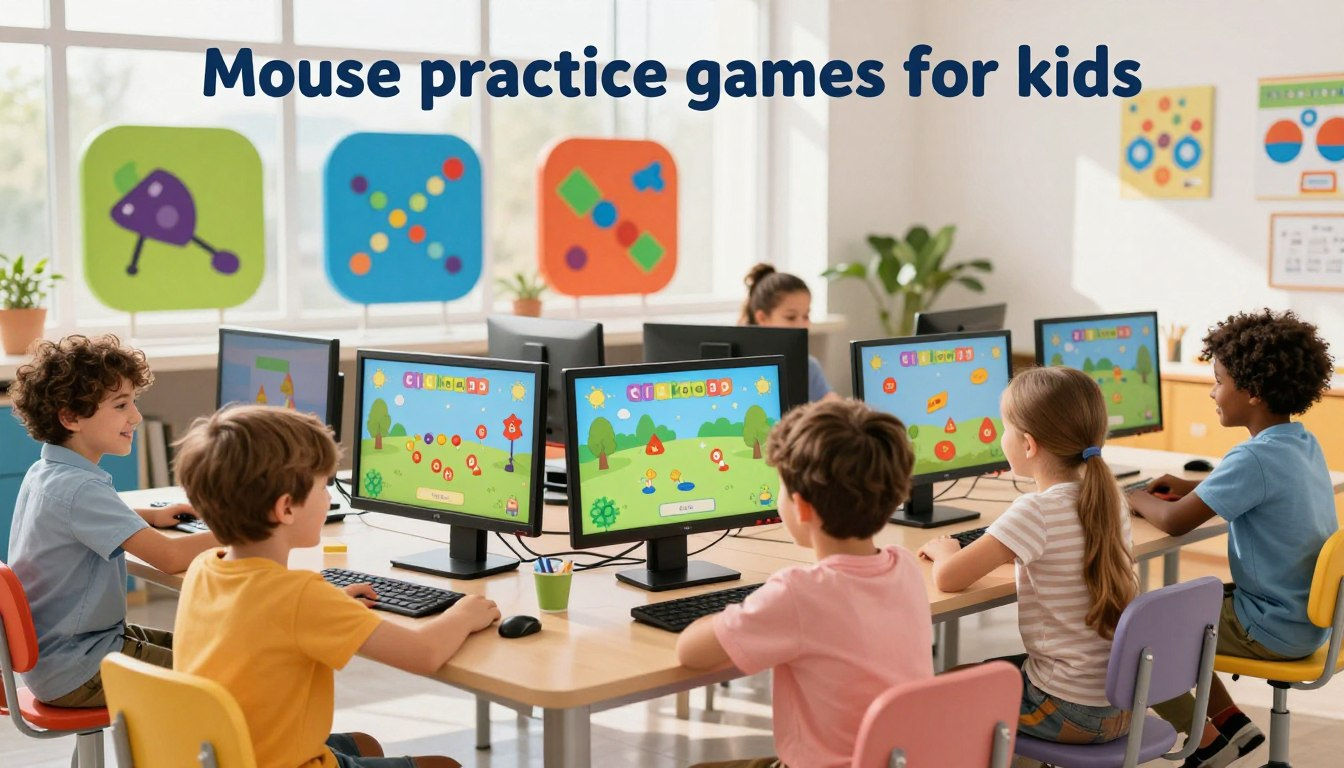
Learning to use a computer mouse is like handing your child a digital magic wand. It opens up an entire world of educational games, creative art programs, and school readiness. But for tiny hands, coordinating a cursor on a screen can feel like trying to pat your head and rub your belly at the same time.
The secret to mastering the mouse? Make it feel like playtime! We have put together the ultimate list of mouse practice games for kids. These 15 fun challenges will take your child from clumsy clicks to digital superhero in no time.
🌟 Why Developing Mouse Skills Early Matters

In a world of touchscreens and tablets, you might wonder, “Does my child really need to learn how to use a traditional mouse?” The answer is a resounding yes!
Using a mouse is a phenomenal workout for your child’s brain and body. It requires complex hand-eye coordination and fine motor skills. When kids struggle with a mouse, they get easily frustrated with educational websites at school. By introducing computer mouse games for kids early on, you allow them to focus on the actual learning material, rather than fighting with the technology.
🖱️ The 3 “Magic Moves” of Mouse Practice

Before diving into the games, teach your child these three main skills using fun, engaging analogies:
- 👆 The Magic Tap (Clicking): A quick, light tap on the left button to select items.
- 🦸♂️ The Superhero Move (Click & Drag): Holding the button down tightly to carry objects across the screen.
- 🎢 The Magic Carpet (Scrolling): Rolling the middle wheel to explore hidden parts of the page.
🟢 Level 1: Click-and-Drag Challenges for Beginners

Dragging objects is often the hardest skill for young learners because it requires keeping the finger pressed down while moving the hand. These interactive mouse activities are perfect for starting out.
Game 1: Balloon Pop Adventures 🎈
Balloons float up the screen, and your child must simply aim the cursor and click to “pop” them. This builds immediate confidence and teaches basic cursor tracking.
Game 2: Shape Sorting Buckets 🪣
Kids must grab a colored shape, drag it across the screen, and drop it into the matching bucket. This introduces the “Superhero Drag” without requiring perfect accuracy.
Game 3: Digital Jigsaw Puzzles 🧩
Start with simple 4-piece puzzles. Dragging a piece and aligning it perfectly into a slot teaches kids to slow down and focus on precise fine motor control.
🟡 Level 2: Intermediate Mouse Skills Games

Once your child masters basic clicking, it is time for more complex online mouse skills games that involve menus and scrolling.
Game 4: Virtual Garden Planting 🌻
Kids navigate menus to select seeds, drag water cans, and apply fertilizer. This makes navigating computer menus feel like a fun outdoor adventure.
Game 5: Digital Coloring Books 🎨
Children must pick colors from a tiny palette menu and click exactly within the lines of a drawing. This is fantastic for precision clicking.
Game 6: Connect the Dots ✏️
By clicking and dragging from number 1 to number 2, kids learn to follow a specific path accurately. The rewarding visual payoff keeps them hooked!
🔴 Level 3: Fun Mouse Exercises for Speed & Precision
As kids get older, they need to click faster and with better accuracy. These fun mouse exercises build reaction times.
Game 7: Catch the Falling Stars ⭐
Stars fall quickly from the top of the screen. Kids have to track the moving object and click it before it hits the bottom.
Game 8: The Mouse Maze Trials 🧀
Kids must guide a piece of cheese through a twisting maze without letting the cursor touch the walls. This requires incredibly steady hands!
Game 9: Whack-a-Mole (Digital Version) 🔨
Fast-paced clicking games where targets pop up and disappear quickly teach children rapid hand-eye coordination.
🎨 Level 4: Creative Virtual Games for Artistic Expression
Screen time can be highly creative! These games have no “right or wrong” answers, which lowers frustration.
Game 10: Digital Finger Painting 🖌️
Holding down the mouse button to draw freehand lines teaches continuous drag control in a wonderful, low-stress environment.
Game 11: Drag & Drop Sticker Scenes 🦕
Kids choose a background (like a dinosaur park) and drag different stickers onto the scene to create a story.
Game 12: Virtual Building Blocks 🧱
Clicking and snapping 3D blocks together helps with spatial awareness and precise dropping skills.
🧠 Level 5: Games That Teach Logic and Patterns
Combine mouse skills with brain power using these top-tier educational mouse games.
Game 13: Matching Memory Cards 🃏
Clicking to flip cards over and remembering where the matches are hidden improves both visual recall and exact clicking.
Game 14: Sequence Sorting 🚂
Kids drag mixed-up pictures (like a seed, a sprout, and a flower) and place them in the correct logical order.
Game 15: The Clean-Up Categorization Game 🧸
Kids must drag virtual toys into a toy box, clothes into a hamper, and trash into a bin, combining classification skills with mouse movement.
| Game Category | Primary Skill Learned | Perfect For |
|---|---|---|
| Beginner Games | Clicking & Holding | Ages 3-4 |
| Intermediate | Navigating Menus | Ages 5-6 |
| Speed & Precision | Steady Hands | Ages 6-8 |
| Logic & Puzzles | Brain Power + Mouse Use | Ages 5-8 |
🪑 Setting Up a Kid-Friendly Practice Environment
If your child is sitting in an adult-sized chair trying to use a massive gaming mouse, they are going to struggle. Setting your child up for success requires the right physical environment.
- The Right Hardware: Buy a “kid-sized” or travel mouse. A smaller, lightweight mouse fits perfectly in tiny palms.
- Posture Matters: Their feet should be flat (use a footstool if needed) and their elbows should rest at a 90-degree angle.
- Keep it Short: 10 to 15 minutes of practice per day is much better than a frustrated 45-minute session!
🛠️ Troubleshooting: When Kids Get Frustrated
If your child gets upset, remember it is completely normal. The most common issue is the “double-click trap,” where kids click too fast and open things they didn’t mean to. Another issue is the cursor flying off the screen because they are gripping the mouse too tightly.
Parent Pro-Tip: Put a small, colorful sticker on the LEFT mouse button. Tell your child, “Only press the sticker button!” This eliminates the confusion of right-clicking by accident.
🎉 Conclusion
Building strong computer skills doesn’t have to feel like homework. By utilizing these 15 mouse practice games for kids, you turn a frustrating learning curve into an exciting digital adventure.
Start with simple balloon popping and slowly work your way up to digital puzzles. Celebrate every small victory, be patient with the accidental clicks, and watch as your child blossoms into a confident, school-ready digital explorer!
❓ Frequently Asked Questions (FAQ)
Why should my child use a mouse instead of just a tablet touchscreen?
While touchscreens are intuitive, most elementary schools and educational testing programs still use traditional desktop computers. Learning mouse skills early prevents kids from falling behind in computer lab classes.
Where can I find free mouse click games for children?
There are incredible free resources online! Websites like PBS KIDS, ABCya!, and Starfall offer dedicated sections specifically for learning how to use a computer mouse.
My child keeps right-clicking by accident. What should I do?
Place a small, textured sticker on the left click button. Tell them to keep their “pointer finger on the sticker.” You can also temporarily disable the right-click function in your computer’s accessibility settings while they learn.
How long should a mouse practice session last?
Keep it very brief. For ages 3-5, practice for just 5-10 minutes. For ages 6-8, 15-20 minutes is plenty. Consistency (practicing a little bit every day) builds muscle memory much faster than long, exhausting sessions.