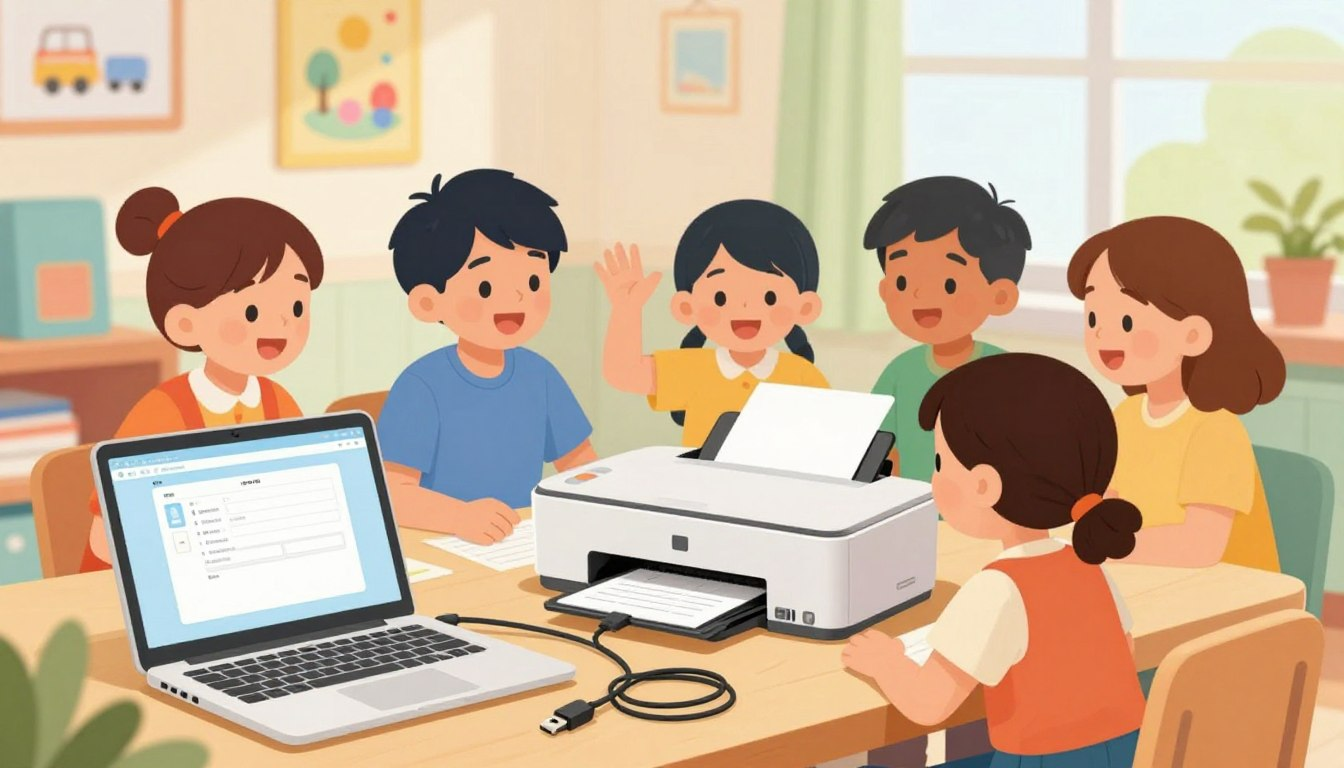
It’s a big Challenge exactly for kids to install a printer. Printing homework at home can make school life easier for both kids and parents. Once a printer is set up the right way, children can print worksheets, reports, reading logs, and project pages without last-minute stress. It also helps create a more organized study space for daily schoolwork.
In this article, you will learn how to install a printer for kids and print homework step by step in a simple and easy-to-follow way. We will explain how to connect the printer, set it up on the computer, add paper, and print the first page. We will also cover a few common problems, such as paper jams or connection issues, so the printer is ready whenever it is needed.
🏗️ Step 1: Building Your Printing Station

Choose the Right Place for the Printer
Before setting up the printer, choose a safe and practical place for it. A printer should be placed on a flat, stable surface so it stays secure while printing. This helps prevent it from falling, moving around, or getting damaged during use.
Pick a Spot That Is Easy to Reach
A good place for the printer is near a desk or on a small table close to the study area. Keeping it nearby makes it easier for kids to collect homework, worksheets, and other printed pages right away. It is also important to leave enough space around the printer so the paper tray can open fully and the lid can be lifted when needed.
Keep Cords Neat and Safe
Printer cords can easily become messy if they are left loose on the floor or behind a desk. Ask an adult to help plug the power cord into the wall safely. To keep the area tidy, use cable ties or tape to hold the wires together. This can help prevent trips, keep the study space organized, and make the printer area safer for children.
| Workspace Feature | Why It Is Important | Pro Tip |
|---|---|---|
| Flat Surface | Keeps the printer from jamming or shaking. | Use a sturdy desk or a low bookshelf. |
| Cable Safety | Prevents tripping and accidentally unplugging it. | Tuck cables behind the desk out of sight. |
| Paper Storage | Keeps paper crisp and ready to use. | Keep a folder of fresh paper right next to the printer! |
📡 Step 2: The Invisible Connection (Wi-Fi Magic)

In the old days, printers had to be connected to the computer with a thick USB cable. Today, most printers use Wi-Fi, which means they can talk to your computer or tablet using invisible waves through the air!
Connecting to the Home Network
Grab a parent for this step! Turn the printer on and use the tiny digital screen on the front to find your home’s Wi-Fi network. Type in your Wi-Fi password (it is usually the same one you use for your iPad or smart TV). Once it connects, the Wi-Fi light will turn solid blue or green.
Printing from Tablets and iPads
If you do your homework on an iPad or a Samsung tablet, printing is super easy. As long as your tablet is on the exact same Wi-Fi network as the printer, you can just hit the “Share” button on your homework app and tap “Print.” It works like magic!
💻 Step 3: Installing the “Translators” (Drivers)

Computers and printers do not speak the same language naturally. To make them understand each other, you have to download a special piece of software called a “Driver.” Think of a Driver as a digital translator!
Downloading the Official Software
With an adult, open your web browser and go to the official website of the company that made your printer (like HP.com, Epson.com, or Canon.com). Type in the name of your printer, and click “Download Drivers.”
“Tech Wizard Tip: Never download printer software from a random, unverified website. Always go straight to the official manufacturer’s page to keep your computer safe from viruses!”
Running the Setup Wizard
Once it downloads, double-click the file. A friendly “Setup Wizard” will pop up on your screen. Just keep clicking “Next” and follow the instructions until it says “Installation Complete.” You are almost ready to print!
⚙️ Step 4: Super-Secret Settings (Saving Ink!)

Printer ink is surprisingly expensive! If you print everything in ultra-high-definition full color, your printer will run out of ink super fast. Let’s change the settings to make your printer an eco-friendly homework machine.
| What You Are Printing | The Best Setting to Use | Why It Is Awesome |
|---|---|---|
| Daily Math & Spelling | Draft Mode / Grayscale (Black & White) | Prints incredibly fast and uses almost zero ink! |
| Final Book Reports | Normal Mode | Looks neat, professional, and easy for teachers to read. |
| Art Projects & Photos | High Quality / Full Color | Makes the colors pop so your art looks like a masterpiece. |
Go into your computer’s “Printer Preferences” menu and set the default to “Draft Mode.” Now, every time you hit print, you will automatically save money and ink!
📄 Step 5: Feeding the Machine (Paper & Ink)
Printers are hungry machines. They need two things to survive: clean paper and fresh ink. Knowing how to load them properly is a huge part of your Tech Wizard training.
How to Load Paper Correctly
If you shove a messy, crinkled stack of paper into the printer, it will get a tummy ache (also known as a Paper Jam!).
- Take a stack of fresh paper and gently tap the bottom edge on your desk to make it perfectly flat.
- Slide it into the printer’s paper tray.
- Pinch the little plastic guides on the sides of the tray so they gently hug the edges of the paper. This keeps the paper perfectly straight while it prints!
Changing the Ink Cartridges
When the computer pops up with a warning that says “Low Ink,” it is time for a change. Let a parent open the ink door. When you hold a new ink cartridge, always hold it by the plastic sides. Never touch the shiny copper chips on the bottom, or the printer might not be able to read it!
🛠️ Step 6: Fixing Problems Like a Pro
Even the best printers throw a tantrum sometimes. Don’t panic! Here is how you can troubleshoot (fix) the two most common printer problems all by yourself.
Problem 1: The Dreaded Paper Jam
If the printer makes a grinding noise and stops, the paper is stuck. Never yank the paper out as hard as you can! If the paper rips inside the machine, it is very hard to fix. Instead, ask an adult to help you open the back door of the printer and pull the paper out very slowly with both hands.
Problem 2: The “Printer is Offline” Error
If you hit print and absolutely nothing happens, your computer might say the printer is “Offline.” This usually just means the invisible Wi-Fi connection got dizzy.
- Turn the printer completely off, wait 10 seconds, and turn it back on.
- Check to make sure your laptop’s Wi-Fi is turned on.
- If it still doesn’t work, restart your computer. That usually fixes the glitch!
🛑 Step 7: Rules of the Printing Station
Now that your homework printing station is fully operational, it is time to set up some ground rules. Because printer ink is expensive, you shouldn’t use the printer as a toy!
The “Check Twice” Rule: Before you hit the print button, always look at the “Print Preview” on your screen. Are you accidentally printing 50 blank pages? Is it in the right color? Checking twice prevents massive mistakes!
Parents can also set up a Print Queue Approval system on the computer. This means when a kid hits print, the computer holds onto the document until a parent walks over and types in a quick password to approve it. It is a great way to prevent accidental waste!
🎉 Conclusion
Installing a printer at home is a useful skill that can make homework and school projects much easier. After following the setup steps, kids can be more prepared to print assignments, worksheets, and study materials whenever they need them.
Learning how to install a printer, connect it properly, and keep it ready for daily use also helps children become more confident with basic computer and home technology skills. With a well-organized printing area, it becomes easier to stay on track with schoolwork and avoid last-minute problems before class.
To keep the printer working well, make sure it stays clean, has enough paper, and is used carefully. Choosing simple print settings for everyday homework can also help save ink and reduce waste. With the printer set up correctly, students can enjoy a smoother and more organized homework routine.
❓ Frequently Asked Questions (FAQ)
What is the first step in setting up a new printer for school?
The first step is choosing a safe and stable place for the printer. It should be on a flat surface near a power outlet and close enough to the study area for easy use. After that, turn on the printer and follow the setup instructions to connect it to the home Wi-Fi network or computer.
How can I print homework from an iPad or tablet?
To print from an iPad or tablet, make sure the device and the printer are connected to the same Wi-Fi network. Then open the homework file, tap the share or menu option, and choose Print. Select the printer, check the settings, and start printing.
How can I save ink when printing homework every day?
A simple way to save ink is to choose print settings such as Draft Mode or Grayscale. Draft Mode uses less ink, and Grayscale prints in black and white instead of color. These settings are often a good choice for worksheets, practice pages, and other everyday school materials.
What does it mean if the printer shows as offline?
If a printer appears offline, it usually means the computer or tablet is not connecting to it properly. This can happen because of a Wi-Fi problem, a loose cable, or a printer setting issue. In many cases, turning the printer off, waiting a few seconds, and turning it back on can help restore the connection.
What is the safest way to fix a paper jam?
The safest way to fix a paper jam is to turn off the printer first and ask an adult for help. Open the printer carefully and remove the jammed paper slowly to avoid tearing it. Pulling too hard can leave small pieces of paper inside, which may cause another jam later.