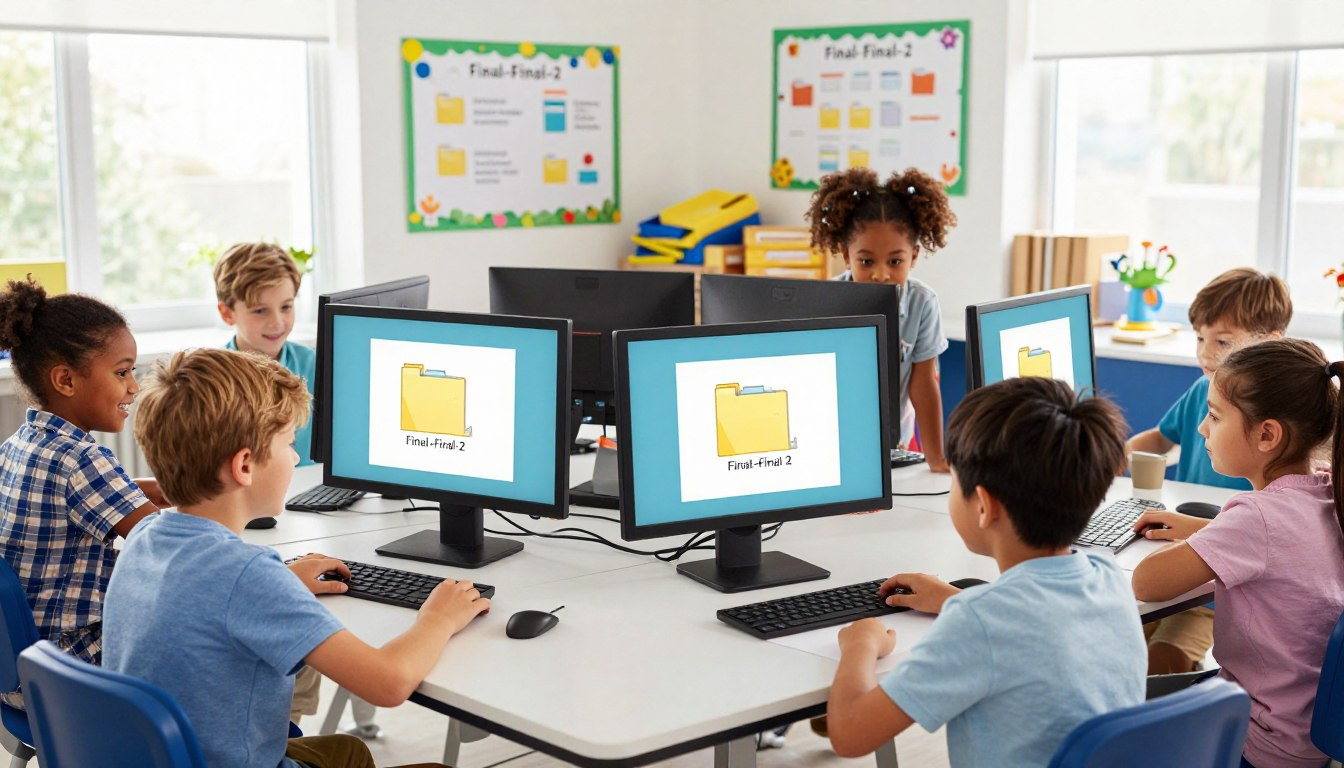
Have you ever opened your computer folder and seen a list that looks like this: Project.docx, Project-Done.docx, Project-Final.docx, and Project-Final-Final-2-I-Mean-It.docx?
If you are nodding your head right now, you are not alone! We have all been trapped in the “Final-Final” loop. But when it’s time to turn in your homework, guessing which file is the right one feels like playing a stressful game of digital roulette.
Learning how to rename files for kids is like learning a digital superpower. When you give your documents smart, clear names, you stop losing your hard work, save tons of time, and never have to panic right before a deadline again.
Let’s banish the “final-final-2” monster forever and learn the ultimate cheat codes for keeping your digital world perfectly organized!
🤯 Why File Naming Matters (The “Lost Homework” Problem)
Imagine if all the books in the library were just named “Book.” How would you ever find the one about dinosaurs? That is exactly what happens to your computer when you name every file “Homework.”
The Hidden Cost of Poor Naming
Bad file naming doesn’t just make your screen look messy; it causes real problems when you are trying to get your work done.
| The Mistake | The Consequence |
|---|---|
| Naming everything “Document1” | Wasted Time: You have to open 5 different files just to find the right one. |
| Using “Final-Final” | Wrong Submissions: Accidentally emailing your teacher the rough draft instead of the finished paper. |
| Leaving it “Untitled” | Lost Work: The computer might accidentally overwrite it, deleting hours of your hard work! |
🛑 Understanding the File Naming Problem
Why do we end up with files named “Final-Final-2” in the first place? Usually, it happens because we want to save a new version of our project without deleting the old one. We panic, quickly type the word “Final,” and hit save. Then, we find a typo, fix it, and have to save it again.
This creates a giant digital mess. But don’t worry! By using kid-friendly file renaming techniques, we can fix this problem easily.
📜 The 3 Golden Rules of Naming Files
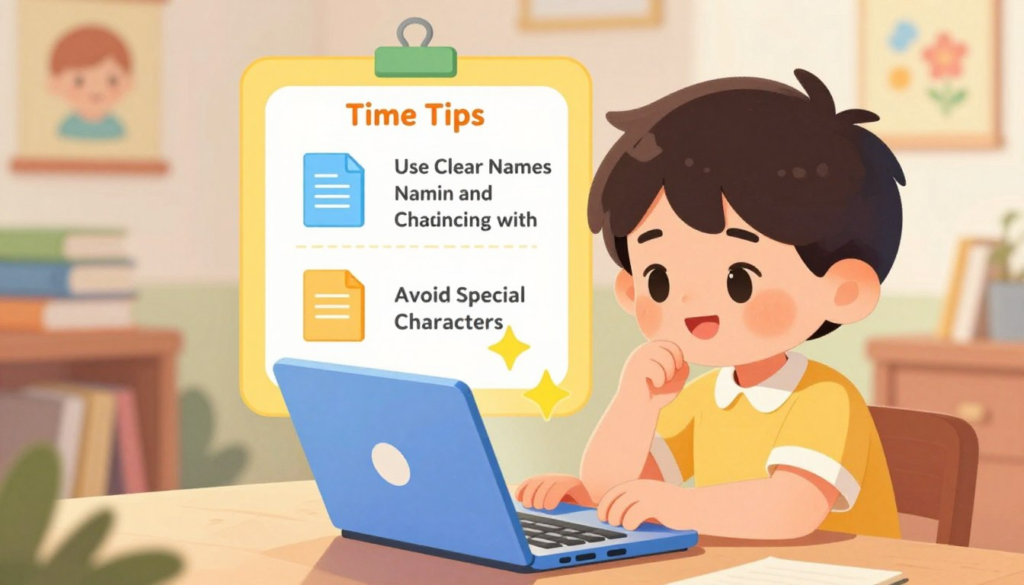
If you want to be a file-naming ninja, you only need to remember these three simple rules:
Rule 1: Be a Storyteller (Be Descriptive)
A good file name tells you exactly what is inside without you having to open it. Instead of “History_Project,” use “Egypt_Pyramids_Report.” Be specific!
Rule 2: Become a Time Traveler (Use Dates)
Adding a date is the smartest trick in the book. If you put the date at the end of the file name (like Egypt_Report_Oct12), you will always know which file is the newest one just by looking at it.
Rule 3: No Alien Languages (Avoid Special Characters)
Computers get very confused if you use weird symbols in your file names. Stick to regular letters, numbers, and dashes or underscores.
| ✅ Safe Characters to Use | ❌ Symbols to Avoid (Will Cause Errors!) |
|---|---|
| Letters (A-Z) | Asterisks and Slashes (* / \) |
| Numbers (0-9) | Question Marks & Exclamation Points (? !) |
| Dashes (-) and Underscores (_) | Money and Math Symbols ($ % < >) |
🖱️ How to Rename Files: Step-by-Step Guide
Ready to clean up your computer? Renaming a file only takes two seconds once you know the secret clicks!
How to Rename on a Windows PC
- Find the file you want to change.
- Right-click on the file using your mouse.
- A menu will pop up. Click on the word Rename (or click the little icon that looks like a pencil).
- The text will turn blue. Type your awesome new name and press Enter!
How to Rename on an Apple Mac
- Click on the file just once to highlight it.
- Press the Return key on your keyboard.
- The text will highlight. Type the new name and press Return again!
How to Rename on a Chromebook
- Open your Files app.
- Two-finger tap the file on your trackpad.
- Select Rename from the list, type the new name, and press Enter.
🎮 Fun Naming Formulas for School Projects
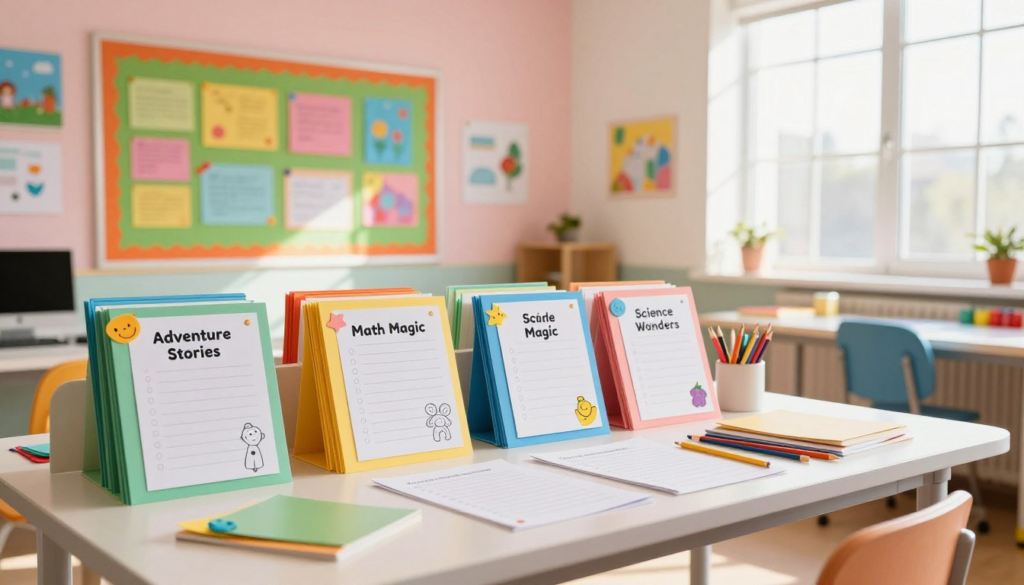
To make naming fast and easy, use a “naming formula.” A formula is just a pattern you use every single time so your brain doesn’t even have to think about it! Here are some great creative file renaming ideas for kids:
The Standard Homework Formula
[Subject] _ [Assignment Name] _ [Date]
- Example: Science_VolcanoReport_Oct14.docx
- Why it works: It groups all your Science homework together alphabetically!
The Art & Creative Formula
[Title] _ [YourName] _ [Version]
- Example: SpaceDragon_LeoSmith_v1.jpg
- Why it works: If your teacher asks the whole class to submit an art piece, your name is right there on the file so they know it belongs to you!
🚀 Leveling Up: How to Stop Using “Final-Final-2”
Okay, it’s time to learn about Version Control. Professional video game designers and coders use this trick so they never lose their work. Instead of using words like “Final” or “Done,” they use the letter “V” (for Version) and a number!
- Draft 1: Math_Essay_v1.docx (Your very first rough draft)
- Draft 2: Math_Essay_v2.docx (You fixed some spelling mistakes)
- Draft 3: Math_Essay_v3.docx (Your parents helped you edit it, and now it’s ready to turn in!)
Whenever you see the highest number, you automatically know that is the file you need to turn in. No more guessing!
☁️ A Quick Note on Google Drive & OneDrive
If you use Google Docs or Microsoft Word Online for school, renaming is even easier! You don’t have to right-click anything. Just look at the very top left corner of your document where it says “Untitled Document.” Click right on those words, type your new formula name, and hit Enter. The cloud saves it automatically!
🎉 Conclusion
Teaching yourself to rename files is a tiny habit that creates massive success. By using descriptive words, adding dates, and using “v1” or “v2” instead of “final-final,” you are taking complete control of your digital world.
Next time you start a project, don’t let it stay “Untitled” for even a second. Name it like a pro right from the start, and your future self will definitely thank you!
❓ Frequently Asked Questions (FAQ)
What are the best educational file renaming activities for kids to practice?
A great activity is a “Digital Scavenger Hunt.” Have a parent download 5 funny animal pictures and name them all “image1”, “image2”, etc. Your job is to go in and rename them descriptively (e.g., “Dog_Wearing_Sunglasses.jpg”) as fast as you can!
Do you have any easy file renaming tips for kids who are just starting out?
Start small! Always put the name of your school subject first. Write down a “Cheat Sheet” on a sticky note and stick it to your monitor. (Example: Subject_Topic_Date).
Is there a specific way to rename files on iPads or tablets?
Yes! On an iPad, open your “Files” app. Press and hold your finger on the file icon until a menu pops up. Tap “Rename,” use the on-screen keyboard to type the new name, and tap “Done.”
Can I use emojis in my file names?
While emojis look really fun, it is usually safer to avoid them in file names. Some older computers or teacher grading systems might get confused by emojis and fail to open your homework!
Why is it bad to use the spacebar in file names?
Sometimes, when you email a file or upload it to a school website, the internet replaces spaces with weird symbols like “%20”. Using an underscore ( _ ) or a dash ( – ) keeps your file name looking clean and easy to read.