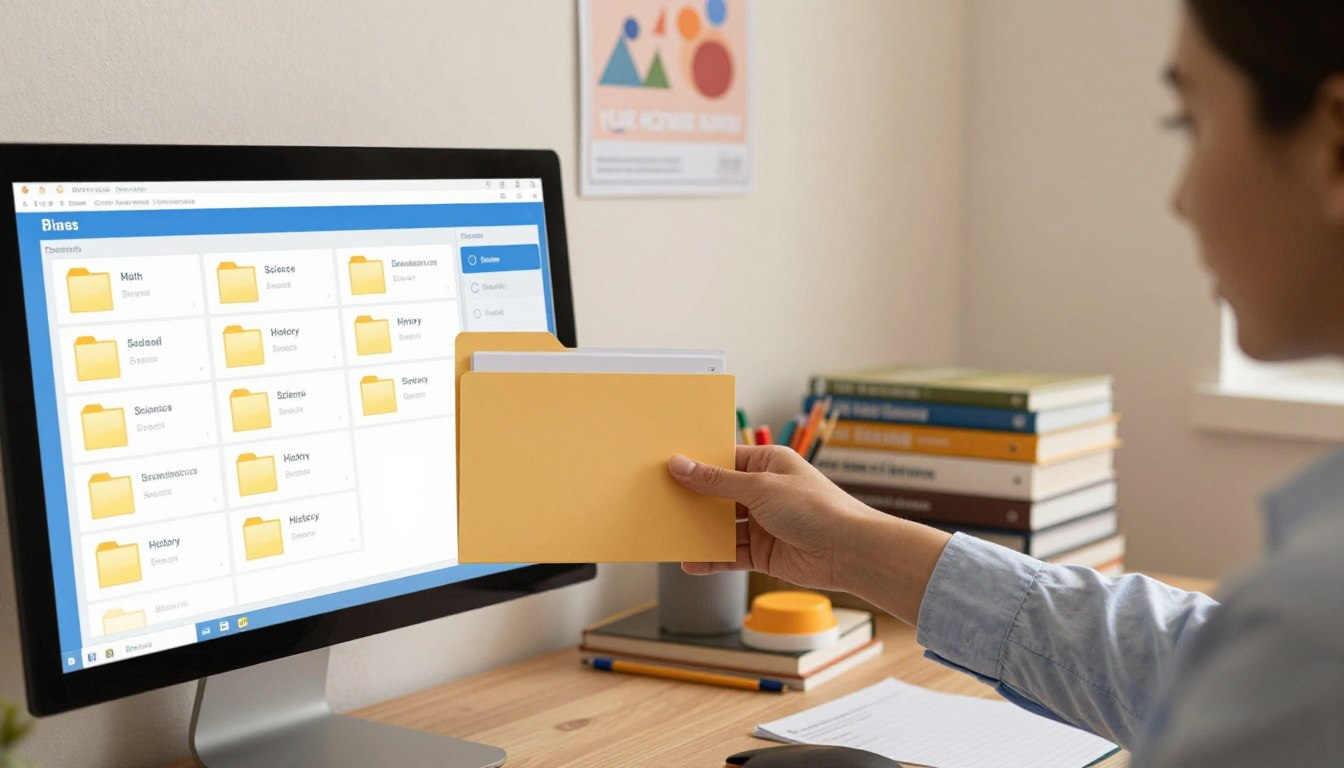
Have you ever turned on your computer to do homework, only to find a screen completely covered in random files, funny memes, and half-finished essays? Trying to find your science project on a messy desktop is just like trying to find your favorite pair of socks in a messy bedroom!
When your digital workspace is cluttered, you waste precious time searching for things instead of actually learning (or playing outside). That is why learning how to organize school files on a computer: folders kids can follow is the ultimate digital superpower.
In this fun and easy guide, we are going to show you how to clean up your screen, create awesome color-coded folders, and name your files so you can always find them in three seconds or less. Let’s build your perfect digital backpack!
🎒 Why You Need a “Digital Backpack”

In the real world, you wouldn’t just throw all your math homework, loose pencils, and half-eaten sandwiches into a pile on the floor. You put them neatly into a backpack. Your computer needs a backpack, too!
When you create a digital filing system, you are giving your brain a break. Here is why an organized computer makes school so much easier:
- No More Missing Homework: You will never accidentally delete or lose an assignment right before it is due.
- Faster Computers: A clean desktop actually helps your computer run faster and smoother [web:36].
- Zero Stress: When you know exactly where your math study guide is, you can finish your homework and get back to having fun.
📁 Step 1: Building Your Master Folders

To clean up your computer, we are going to use the “Russian Nesting Doll” method. This means putting small folders inside of medium folders, inside of one giant folder.
The Giant Folder (The Academic Year)
First, create one brand new folder directly on your desktop or in your Documents folder. Name it after the current school year, like “School 2026-2027.” This is your giant digital backpack. Absolutely everything school-related goes in here—no personal video games or pictures of your dog allowed!
The Subfolders (Your Classes)
Next, open up your “School 2026-2027” folder. Inside, create a new folder for every single class you are taking. Your screen should look something like this:
- 📘 English
- 📐 Math
- 🔬 Science
- 🌍 History
- 🎨 Art
🏷️ Step 2: The Secret “Name Game” Formula

If you name a document “homework1.docx” or “asdfghjkl.pdf,” you are setting a trap for yourself. Three weeks from now, you will have no idea what is inside that file!
The Ultimate File Naming Trick
To be a digital organization master, you need a naming formula. The best way to name a school file is by starting with the class, then the assignment name, and finally the date [web:38].
The Formula: Class_AssignmentName_Date
Examples:
- English_BookReport_Oct12.pdf
- Science_VolcanoProject_Nov5.docx
If you always name your files this way, they will magically sort themselves into perfect alphabetical order inside your folders!
🎨 Step 3: Color Coding and Emojis

Who says organization has to be boring? Human brains find pictures and colors much faster than they read text. By making your folders visual, you can find your homework in one second flat.
Adding Emojis to Folder Names
Did you know you can put emojis right into your folder names? If you are using Windows, press the Windows Key + Period (.) to open the emoji menu. On a Mac, press Control + Command + Spacebar.
Change your boring folder names to look like this:
- 🧪 Science Labs
- 📚 English Reading
- 🧮 Math Homework
If you are using a Mac or Google Drive, you can even right-click on the folders and change their colors to match your real-life school binders!
🗑️ Step 4: The Dreaded “Downloads” Folder

The Downloads folder on your computer is like a giant digital junk drawer. Every time you save a picture from the internet or download a worksheet from your teacher, it gets dumped in there.
The Friday 5-Minute Cleanup
To keep your computer lightning-fast, set a timer for five minutes every Friday afternoon. Open your Downloads folder and do the following:
- Trash the Junk: Delete any funny memes or old worksheets you don’t need anymore.
- Move the Keepers: Drag the important files directly into your colorful class folders.
- Empty the Trash: Right-click the trash can/recycle bin on your desktop and hit “Empty” to permanently delete the garbage and save space!
☁️ Step 5: Saving to the Cloud
Imagine writing a 10-page essay, and right as you finish, your little brother spills milk all over your laptop. If your file was only saved on your computer, that essay is gone forever!
To protect your hard work, you should always save a backup of your files to “The Cloud.” The cloud is a safe, invisible storage unit on the internet. Tools like Google Drive, Microsoft OneDrive, and Apple iCloud are perfect for this.
| Storage Type | Where It Lives | Why Use It? |
|---|---|---|
| Hard Drive | Inside your laptop. | Great for big files and working without Wi-Fi. |
| The Cloud | On the internet. | Safe from spilled milk! You can open your homework on any computer in the world [web:40]. |
🤝 Working on Group Projects
When you have to do a project with three other classmates, file organization can get messy fast. Instead of emailing documents back and forth, create a Shared Folder in Google Drive!
Name the folder something fun like “Science Group: The Volcano Bros” and share the link with your partners. This way, everyone can put their research notes and pictures into the exact same safe spot.
📦 What to Do at the End of the Year
When summer vacation finally arrives, what do you do with all those files? You don’t want to delete them, because you might need to look at an old math formula next year.
Create a brand new folder called “Archive” or “Old Grades.” Drag your entire “School 2026-2027” folder inside it. Now your work is safely hidden away, and your desktop is totally clean and ready for next year!
🎉 Conclusion
You did it! By following this guide, you now know exactly how to organize school files on a computer: folders kids can follow.
When you take the time to set up your master folders, use smart file names, and do a quick Friday clean-up, your computer stops being a stressful mess and becomes your ultimate homework helper. Take 15 minutes today to build your folders, add some fun emojis, and get ready to crush your classes!
❓ Frequently Asked Questions (FAQ)
What is the most effective way to organize school files on a computer for a beginner?
The best way is the “Folder Inside a Folder” method. Make one big folder for the current school year, and then put smaller folders inside it for each specific class (Math, Science, Art, etc.).
How should I name my school files so I don’t lose them?
Never name a file “homework.” Always use a formula: Class_Assignment_Date. For example, naming a file “History_EgyptEssay_Nov12” ensures you know exactly what it is without having to open it!
How do I add emojis to my computer folders?
It is easy! When you are typing the folder name on Windows, press the Windows Key and the Period (.) key at the same time to open the emoji menu. On a Mac, press Control + Command + Spacebar.
Why is my computer running so slow?
If your computer screen is covered in hundreds of icons, your computer has to work extra hard to load them all! Putting everything neatly into folders and deleting old files from your “Downloads” folder will speed up your machine.
What are the benefits of organizing school documents online instead of on my computer?
Saving files online (in the Cloud, like Google Drive) means your homework is safe from spilled drinks or broken laptops. Plus, you can log into your Cloud account on a library computer and still access all your work!