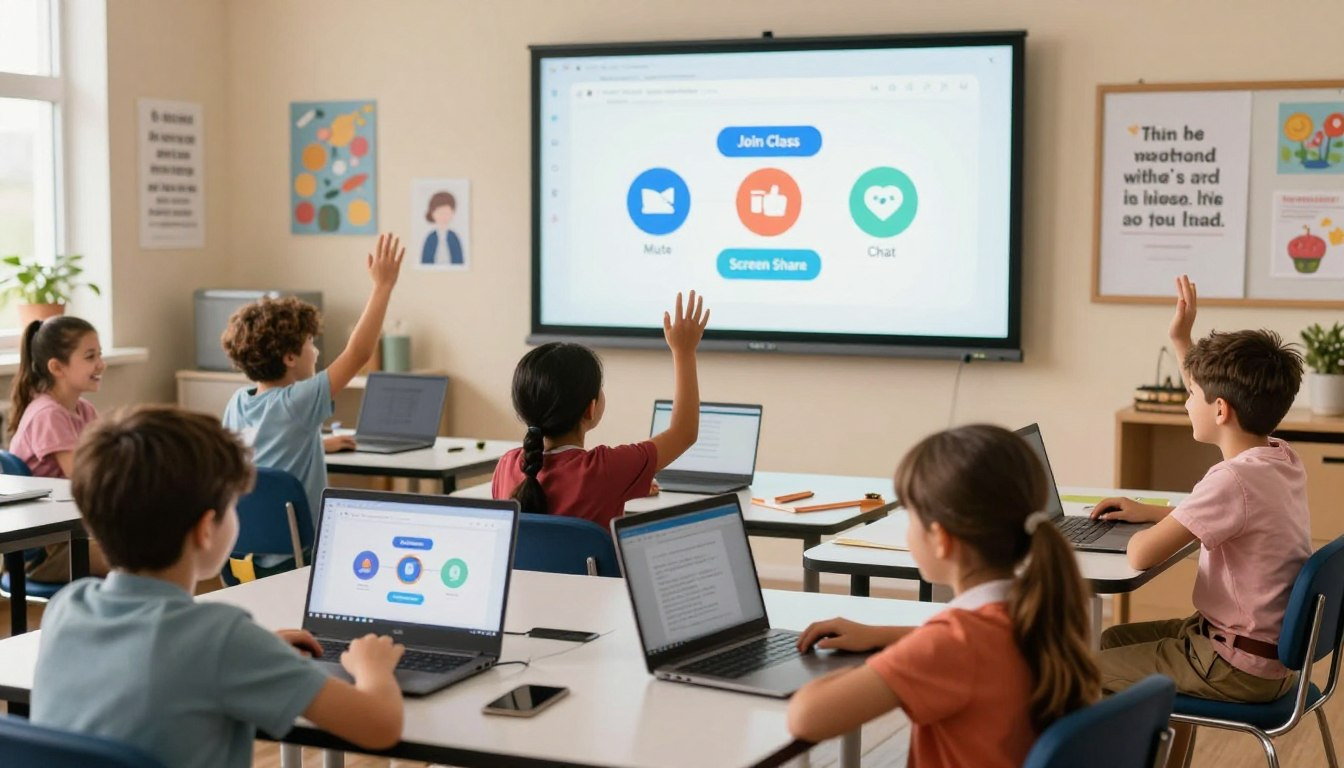
Zoom is now a normal part of many school routines. Children may use it for online classes, tutoring sessions, group projects, parent-teacher meetings, or school clubs. For a child using Zoom for the first time, the buttons can feel confusing: Join, Mute, Chat, Raise Hand, Share Screen, and Leave all have different purposes.
This guide helps parents walk a child through the basics of using Zoom safely and respectfully for school. It covers how to prepare before class, join a meeting, use mute and video, ask questions, use chat properly, follow screen rules, and handle common technical problems.
Before your child joins a Zoom class independently, sit with them for one short practice session. Make sure they know how to mute and unmute, leave the meeting, use chat only when allowed, and ask for help if they see someone unfamiliar or something inappropriate. A child should never share a Zoom link, meeting ID, passcode, school email, home address, or password with anyone outside the class.
Before Class: Get the Device Ready
A calm Zoom class starts before the meeting link is clicked. A few small checks can prevent most problems: weak audio, a dark camera, wrong account, low battery, or a noisy background.
Use the Correct School Account
If the school provides a student email or learning account, your child should use that account when joining class. This helps the teacher recognize the student and may be required for the meeting link to work properly. If the child joins from a personal or family account, the teacher may not know who is waiting to enter.
Check the Device, Battery, and Internet
Before class starts, make sure the laptop, tablet, or Chromebook is charged or plugged in. Close games, extra browser tabs, and videos that are not needed for class. These can slow the device down and distract the child while the teacher is speaking.
If possible, place the device on a table or desk instead of holding it. A steady device makes it easier for the child to focus, write notes, and participate without moving the camera constantly.
Test Audio and Camera
Audio matters more than video in most online classes. Your child needs to hear the teacher clearly and speak when called on. If headphones are available, they can reduce background noise and help the child focus.
- Microphone: Check that Zoom is using the correct microphone.
- Speakers or headphones: Play a test sound if Zoom offers the option.
- Camera: Make sure the child’s face is visible if the teacher expects video to be on.
- Lighting: Sit facing a window or lamp instead of sitting with bright light behind the child.
How to Join a Zoom Class
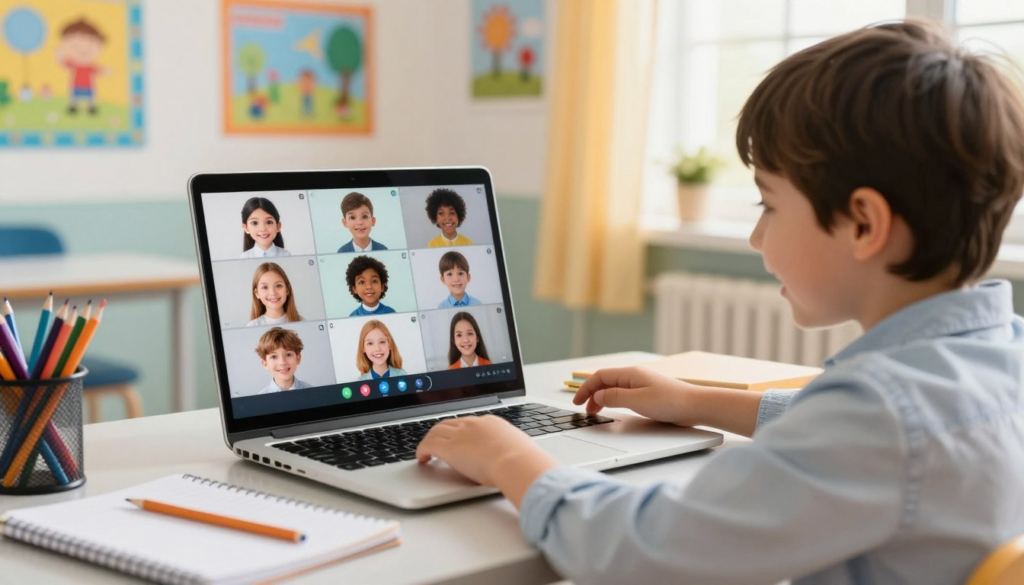
Most school Zoom classes are joined through a link in Google Classroom, a school portal, an email, or a calendar invitation. Some classes may also require a Meeting ID and passcode.
Joining With a Class Link
- Open the school portal, Google Classroom, email, or calendar invite where the teacher posted the link.
- Click the Zoom class link.
- If the browser asks to open Zoom, click Open Zoom or Open Zoom Meetings.
- Enter the child’s real first name if Zoom asks for a display name.
- Wait in the waiting room until the teacher admits the student.
If the meeting does not open, copy the link and paste it into the browser address bar, or open the Zoom app and choose Join. A parent may need to help the first time.
Joining With Meeting ID and Passcode
If the teacher provides a Meeting ID and passcode, open the Zoom app and click Join. Type the Meeting ID carefully, then enter the passcode if requested. The display name should be simple and recognizable, such as the child’s first name and class name if the teacher requests it.
Meeting links, IDs, and passcodes are private classroom information. Children should not post them in chats, games, comments, social media, or messages to people outside the class.
Understanding the Waiting Room
Many teachers use a Zoom waiting room. This means students wait on a screen until the teacher lets them into the meeting. The waiting room helps the teacher check names and keep the class private.
If your child sees a message saying the host will let them in soon, they should wait patiently. They should not keep closing and reopening the meeting unless a parent or teacher tells them to. If they are waiting for a long time, a parent can check whether the class time, link, or account is correct.
Mute and Unmute: The Most Important Zoom Skill
The mute button controls whether the class can hear your child. In a group class, children should usually stay muted unless the teacher calls on them. This prevents background noise from interrupting the lesson.
The microphone icon is usually near the bottom-left corner of the Zoom screen. If the microphone has a line through it, the child is muted. If there is no line, the microphone is on and others may hear sounds in the room.
| Zoom Audio State | What It Means | What the Child Should Do |
|---|---|---|
| Muted | The class cannot hear the child. | Stay this way while listening. |
| Unmuted | The class can hear the child and background noise. | Use only when speaking. |
| Asked to unmute | The teacher wants the child to speak. | Unmute, answer, then mute again. |
Some versions of Zoom allow a push-to-talk feature, such as holding the spacebar to unmute temporarily. This can be useful, but it may not work on every device or setting. The safer habit is to teach your child to click Unmute when called on, speak clearly, and mute again afterward.
Camera Rules for Online Class
Every school has different camera expectations. Some teachers ask students to keep video on so they can see who is present. Others allow cameras off for privacy, bandwidth, or comfort. Follow the teacher’s rule first.
If video is on, help your child sit in a simple, appropriate place. The background does not need to be perfect, but it should not show private family information, messy personal areas, or anything that would distract the class.
- Place the device on a stable surface.
- Keep the child’s face centered in the frame.
- Use good lighting when possible.
- Avoid walking around with the camera on.
- Use blur or a simple background only if the teacher allows it.
Virtual backgrounds can be useful for privacy, but they should stay simple. Moving or silly backgrounds can distract the child and the class.
Using Chat the Right Way
The Zoom chat box can be helpful when a child has a question, needs technical help, or the teacher asks students to type an answer. But it can also become distracting if students use it for side conversations.
Teach your child to check who will receive the message before typing. A message sent to Everyone can be seen by the class. A direct message may go only to the teacher or another participant, depending on the teacher’s settings.
- Use chat only when the teacher allows it.
- Keep messages short and related to class.
- Do not share personal information in chat.
- Do not send jokes, spam, links, or unrelated comments.
- Ask a parent or teacher if a message feels confusing or inappropriate.
Raise Hand, Reactions, and Class Participation
Zoom has tools that help students participate without interrupting. The Raise Hand button lets the teacher know a student wants to speak. Reactions, such as a thumbs-up, may be useful if the teacher asks for a quick response.
These tools should be used the same way students would participate in a physical classroom: respectfully and only when appropriate. Clicking reactions repeatedly, raising and lowering the hand for fun, or using buttons to distract others can interrupt the lesson.
Screen Sharing: Only When the Teacher Allows It
Some classes use screen sharing for presentations, homework review, or group work. Children should not click Share Screen unless the teacher asks them to. Sharing the wrong window can accidentally show private tabs, messages, photos, or other personal information.
Before sharing, close anything not needed for class. If the teacher asks the child to share a document or presentation, a parent can help the first time by making sure only the correct window is open.
Basic Zoom Safety Rules for Kids
Online class is still a school space. Children should treat it with the same care they would use in a classroom. These rules are worth reviewing before the first meeting:
- Do not share class links, Meeting IDs, or passcodes with anyone outside the class.
- Use the name the teacher expects, not a nickname or joke name.
- Do not type passwords, addresses, phone numbers, or personal details in chat.
- Do not accept private messages or links from people you do not recognize.
- Tell a parent or teacher if someone unfamiliar enters the meeting.
- Leave the meeting and get help if something inappropriate appears.
- Use chat, reactions, camera, and microphone only for class.
Try This at Home: A Practice Zoom Meeting
Before your child’s first important class, do a short practice meeting with a parent or older sibling. This removes pressure and helps the child learn the controls before the real lesson begins.
- Open Zoom using the device your child will use for school.
- Practice joining a meeting or opening the app.
- Find the mute and video buttons.
- Practice muting, unmuting, and muting again after speaking.
- Open chat and type one class-related message.
- Use Raise Hand once, then lower it.
- Practice leaving the meeting properly.
After the practice, ask your child to explain the most important rule in their own words. If they can explain when to mute, when to use chat, and what to do if something feels wrong, they are much more ready for a real class.
Common Zoom Mistakes to Avoid
- Joining with the wrong name or account. The teacher may not know who is waiting to enter the class.
- Forgetting the microphone is on. Background conversations, television, pets, and keyboard noise may be heard by everyone.
- Typing private information in chat. Chat should never include addresses, passwords, phone numbers, or private family details.
- Leaving games or videos open. Extra apps can slow down the device and distract the child.
- Using screen share without permission. A child may accidentally show private tabs or files.
- Panicking when disconnected. If the meeting drops, reopen the original class link and wait to be admitted again.
Parent Checklist
- Does your child know which school account or name to use?
- Can they join from the class link or Meeting ID?
- Can they mute and unmute correctly?
- Do they know to mute again after speaking?
- Can they use Raise Hand without interrupting?
- Do they understand that chat is for class messages only?
- Do they know not to share Zoom links, IDs, or passcodes?
- Do they know not to click unknown links or messages during class?
- Can they leave and rejoin calmly if the connection drops?
Frequently Asked Questions
What is the easiest way for a child to join a Zoom class?
The easiest way is usually to click the class link from the school portal, Google Classroom, email, or calendar invite. If that does not work, open the Zoom app, choose Join, and enter the Meeting ID and passcode provided by the teacher.
Should my child keep the camera on during Zoom class?
Follow the teacher’s rule. Some classes require cameras on for attendance and participation. Others allow cameras off for privacy or connection reasons. If the camera is on, the child should sit in a simple, appropriate space and avoid showing private family information.
Can my child use Zoom chat during class?
Only if the teacher allows it. Chat should be used for class-related questions or answers, not side conversations. Children should never share personal information, private links, passwords, or unrelated messages in chat.
What should my child do if Zoom disconnects?
They should stay calm, reopen the original class link, and wait to be admitted again. If the problem keeps happening, they should tell a parent or teacher instead of repeatedly clicking random buttons.
Is it safe for children to use screen share?
Screen sharing is safe only when used carefully and with the teacher’s permission. Children should close unrelated tabs and apps first, then share only the window the teacher asked for. Younger children may need a parent to help the first time.
Zoom becomes much easier when children understand the basic routine: join with the correct name, stay muted while listening, use chat only for class, raise a hand before speaking, and ask for help when something feels wrong. With one practice meeting at home, most children can learn the controls calmly before they need them in a real class.
Last reviewed: May 2026. Zoom menus and school settings can change over time. If a button looks different on your device, check the teacher’s instructions or Zoom’s help page for the version your child uses.
If your child uses Zoom for online class, it also helps to review our guide on digital citizenship for kids, especially for respectful chat and class behavior.
For school accounts and safe communication, you can also read how to use a family email safely for school sign-ups.