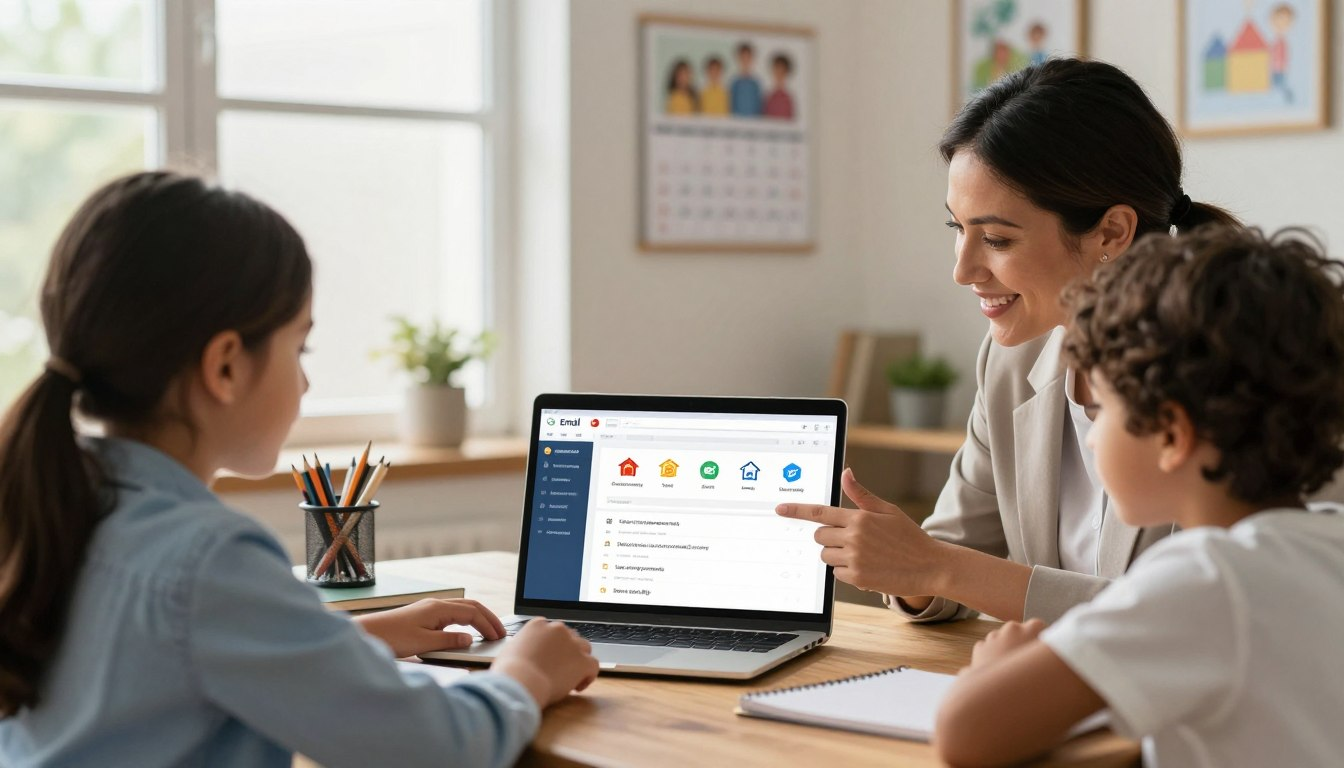
Most schools now use online portals, sign-up forms, and email newsletters that require an address. For children without their own account, the family email becomes the default — used for everything from registering for the science fair to receiving homework reminders. Without a clear system, that inbox fills up fast, messages get missed, and children sometimes act on emails alone without knowing what is safe to respond to and what is not.
This guide covers the practical side of using a shared family email for school: setting up the account sensibly, what to share and what to leave blank on sign-up forms, how to organise school messages, how to spot suspicious emails, and which situations require a parent before a child does anything at all.
A family email used for school sign-ups should be checked by a parent regularly — every day or two is reasonable when activity is high. Your child should understand from the start that the inbox is shared and that you will see incoming messages. Agree on the rules before the first sign-up, not after something goes wrong. The goal is supervision, not surveillance — you are there to help, not to monitor everything the child does.
Why a Shared Family Email Works for School
Many major email platforms have age rules for children, and some require a parent-managed or supervised account for younger users. Before a child manages email independently, a supervised family email is often the safer arrangement. Even for older children, a shared inbox keeps school communications visible to a parent — which means deadlines are less likely to be missed, unusual messages get noticed, and the child learns how email works before managing an account alone.
The practical benefit is straightforward: school messages go to one place that both parent and child can access, rather than disappearing into an unmonitored personal account or being sent to a parent address where the child never sees them.
Setting Up the Account
Choosing an Email Address
The address used for school sign-ups should not contain the child’s full name or year of birth. An address like smithfamilymail@gmail.com identifies the family without exposing personal information about the child. Avoid formats like mia.smith.2015@gmail.com — that broadcasts a name and approximate birth year to every site the address is shared with, which adds up quickly over a school year’s worth of registrations.
Password and Account Security
The account password should be set and managed by a parent — not shared with the child. Use a long, unique password or passphrase that is not reused on any other account. If you write it down, keep it somewhere offline and accessible only to adults in the household.
Turn on two-step verification before using the address anywhere. In Gmail, go to Account Settings, then Security, then 2-Step Verification. This adds an extra check when someone tries to log in from a new device, so even if the password were ever exposed, access is harder without the parent’s approval.
If your child needs to send homework by email, review our guide on how kids can attach a file to an email for school.
What to Share on Sign-Up Forms — and What to Leave Blank
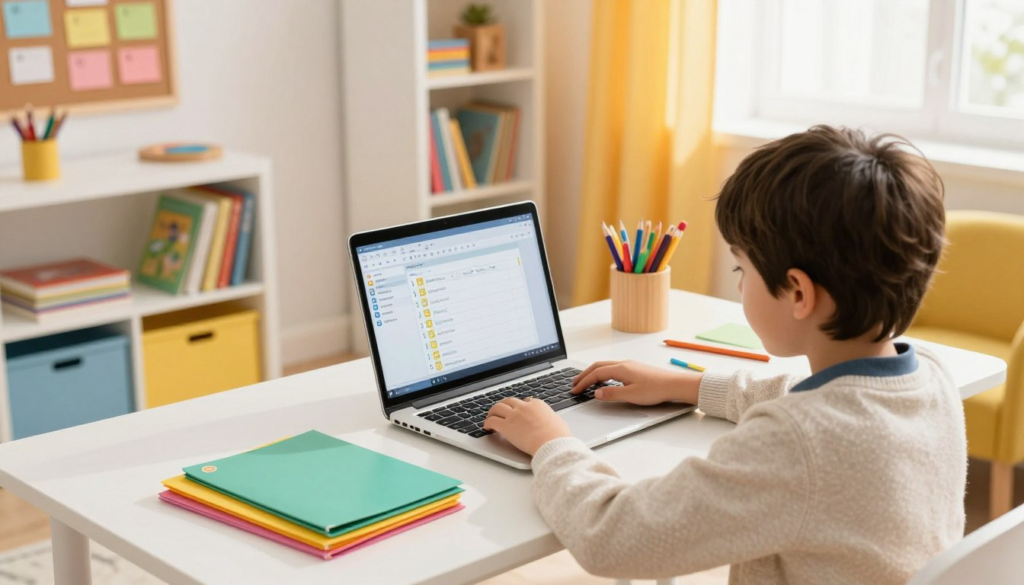
Children filling out forms independently tend to complete every visible field, assuming it is all required. Teach one clear rule: only complete fields marked with an asterisk (*) or labelled as required. Optional fields — especially those asking for home address, phone number, or full date of birth — should be left blank unless there is a specific, obvious reason the information is needed.
A reading club newsletter has no legitimate need for a child’s home address. If a form requests unusually personal details just to join a school activity, that is worth checking before submitting. The following should never be entered on a school sign-up form without a parent present:
- The child’s full date of birth
- Home address or postcode
- A parent’s name paired with a phone number
- Any payment or financial information
- Another email address or a social media account
When a Child Should Always Wait for a Parent
These situations should be agreed-upon rules before the child uses the inbox independently — not explained after something has already happened.
- An email asks for a password. A child should never send a password by email. This is always a stop-and-show-a-parent situation, regardless of how official the message looks.
- An email contains a link and creates urgency. Messages that pressure a child to click immediately — “Act now or lose your place” — are a common feature of fraudulent emails. Genuine school communications do not work this way.
- The sender address is unfamiliar. If the child does not recognise who sent an email, leave it unread and tell a parent.
- An email asks for a reply with personal details. No real school sign-up asks a child to reply with their address, age, or any other personal information.
- An unexpected attachment arrives. Even from an address that looks familiar, attachments that were not anticipated should not be opened without a parent’s agreement.
How to Recognise a Suspicious Email
Phishing emails are designed to look like they come from a trusted source — a school, a club, or a familiar organisation — when they do not. The goal is usually to get a password or personal information. Children encounter these less than adults, but school sign-up activity does attract promotional and occasionally deceptive email.
Common signs that an email may not be genuine:
- The greeting is generic — “Dear Parent” or “Dear User” rather than a name
- The sender address has extra characters, unusual spelling, or a domain that does not match the organisation
- The message creates pressure to act immediately
- It asks for a password, payment, or personal details
- The writing contains spelling mistakes or unusual phrasing
If an email matches any of these signs, the right response is to leave it alone and show a parent. Do not click any link, do not reply, and do not open any attachment. The most useful habit a child can develop with email is simply: when in doubt, wait.
Organising School Emails
A shared inbox receiving messages for more than one child’s activities gets hard to navigate quickly. Setting up labelled folders is a small task that prevents important messages from getting buried.
Creating Folders
In Gmail, scroll to the bottom of the left sidebar and click Create new label. Create one label per child, and sub-labels for individual activities if needed. In Outlook, right-click the inbox in the left panel and choose Create new folder. Naming folders by child name, subject, or activity all work — the goal is to move emails out of the main inbox and into somewhere they can be found again easily.
Handling Unwanted Emails
After signing up for school activities, the inbox will likely receive promotional emails from associated organisations — uniform suppliers, book platforms, educational tools. These are usually legitimate but unwanted. A parent should scroll to the bottom of each one and use the unsubscribe link — this is a task for a parent rather than a child, since unsubscribe links lead to external pages and it is better for an adult to confirm what they are clicking before proceeding.
Family Email Rules Worth Writing Down
A short list of agreed rules kept near the computer gives children a reference point when a parent is not in the room. A working version:
- Tell a parent before signing up for anything new with the family email.
- Only fill in required fields on sign-up forms — leave optional personal details blank.
- Never share the email password with anyone outside the family.
- If an email asks for a password, payment, or tells you to click something urgently — stop and get a parent.
- Do not reply to emails from addresses you do not recognise.
- Do not open attachments without checking with a parent first.
Try This Together: A Practice Sign-Up
Find a simple, free school-related registration — a library reading challenge, a homework help site, or a class newsletter — and walk through the sign-up form together with your child. Look at each field and discuss which are required, which are optional, and which should be left blank. Submit only what is genuinely needed. When the confirmation email arrives, open it together and point out what a genuine expected email looks like: a recognisable sender address, a clear subject line, no urgency, and no request for further personal details. This gives your child a concrete reference point before they encounter something that does not match.
Common Mistakes to Avoid
- Using the child’s full name and birth year in the email address. A neutral family identifier is safer and just as usable for school purposes.
- Sharing the account password with the child. If a child knows the password, they can access, respond to, and delete emails without a parent’s awareness. The password should remain with the parent.
- Letting a child complete sign-up forms independently without reviewing them first. Forms vary widely in what they ask for. A quick parent review before submitting avoids unnecessary sharing of personal information.
- Letting a child handle unsubscribe links. Most are safe, but they lead to external pages. A parent should manage unsubscribing, not the child.
- Assuming well-formatted emails are always genuine. Fraudulent emails can appear professional. The agreed rules — not the appearance of the email — should guide what the child does next.
Parent Checklist
- Does the family email address avoid the child’s full name and birth year?
- Is the account password managed by a parent, not shared with the child?
- Is two-step verification turned on?
- Does your child know to fill in only required fields on sign-up forms?
- Have you agreed on which types of emails require a parent before acting?
- Are folders set up to organise messages by child or activity?
- Has your child seen what a genuine confirmation email looks like?
- Are the agreed family email rules written down somewhere accessible?
Frequently Asked Questions
At what age should a child have their own email address?
Most email providers require users to be at least 13. Before that, a supervised family email is the appropriate arrangement. After 13, transitioning gradually — beginning with school use while a parent stays aware of the inbox — is more practical than switching to full unsupervised access at once.
What should we do if the inbox starts filling up with spam?
Mark unwanted messages as spam using the email platform’s built-in tool — this trains the filter over time. For legitimate but unwanted newsletters, use the unsubscribe link at the bottom of the email. If the volume becomes unmanageable, it may be worth creating a second address used specifically for school sign-ups, keeping the main family inbox for personal communication only.
Can a child read emails in the inbox without a parent present?
Reading is generally fine for expected emails — a newsletter, a sign-up confirmation. Acting on an email — clicking a link, replying, downloading an attachment — should involve a parent until the child is old enough and experienced enough to identify suspicious messages reliably. That threshold varies by child, but erring on the side of checking first costs very little and prevents most foreseeable problems.
A shared family email managed with clear rules is genuinely useful for school life. The habits built here — sharing only what is needed, pausing before acting on unknown messages, keeping the inbox organised — carry forward into every account a child manages independently later on.
For broader account safety, you may also want to read our guide on privacy settings for kids accounts.