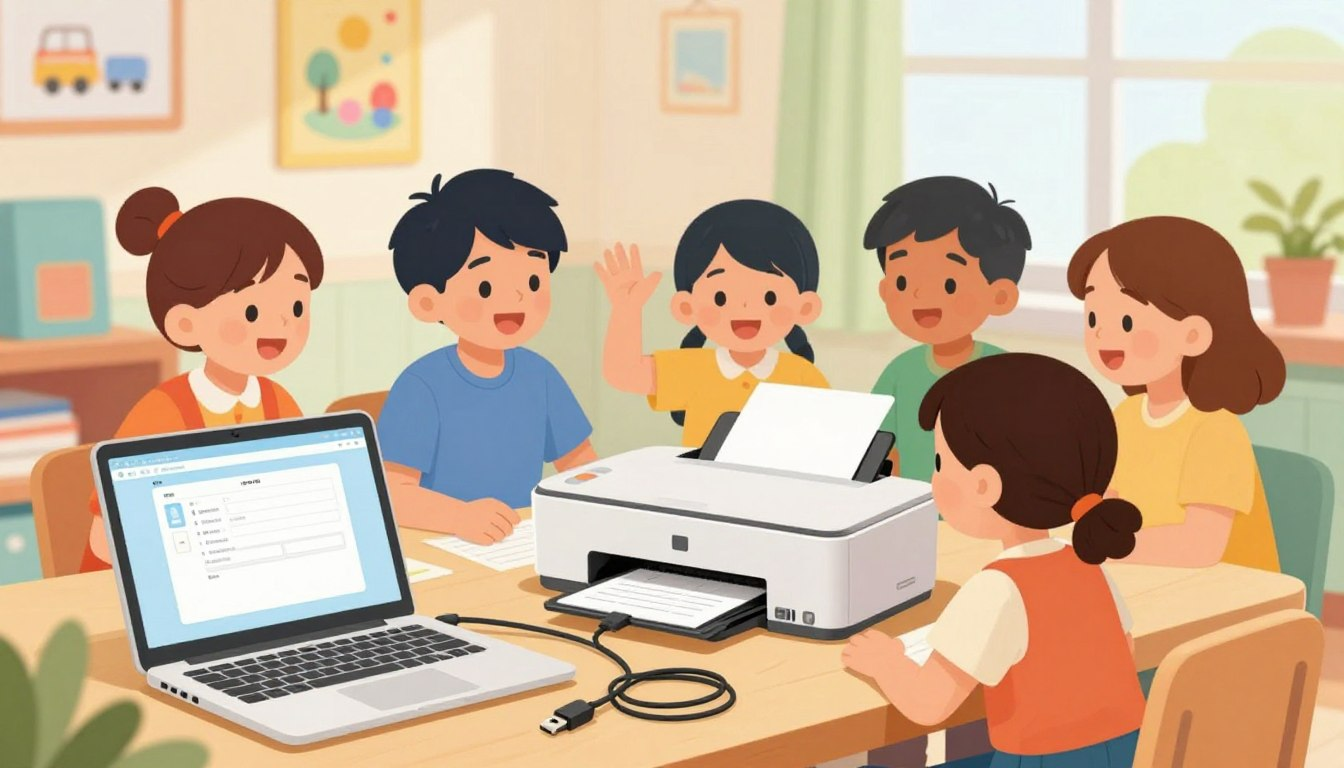
Printing homework at home sounds simple — until your child is standing at the printer five minutes before school, nothing is working, and the panic sets in. It happens in a lot of households. The fix is usually not complicated, but it does require knowing a few basics before that moment arrives.
This guide walks parents through the full process: checking the printer is ready, helping your child find and preview the right document, choosing the right print settings, and knowing what to do when something goes wrong. Once you have gone through it together once or twice, printing homework becomes a calm, independent habit instead of a last-minute scramble.
Before printing homework, it helps if your child already knows how to save their file correctly. You can review our guide on how kids can save a file on Windows.
This guide covers the printing process itself, not the initial printer setup. Before starting, your printer should already be connected to your computer or home Wi-Fi. If that is not done yet, check the short setup guide that came in the printer box, or search your printer’s model number on the manufacturer’s website (HP, Canon, Epson, or Brother all have clear setup pages).
Choosing a Printer That Works for Homework
If you are still deciding on a printer, a basic inkjet model handles most homework printing well and costs little upfront. The main ongoing cost is ink, so before buying, check what replacement cartridges cost for that specific model — prices vary a lot between brands.
If your child prints large amounts of text-heavy material — spelling lists, math worksheets, reading passages — a black-and-white laser printer is worth considering. Laser toner lasts significantly longer than ink cartridges and typically costs less per page over a full school year.
Most current printers connect over Wi-Fi, which means a laptop, tablet, or Chromebook can send a print job without any cable. Just confirm that both the printer and the device are connected to the same home Wi-Fi network before your child tries to print.
Before Every Print: A Two-Minute Check
Most printing problems are caught — or caused — before anyone clicks the print button. Walk your child through this short check until it becomes automatic.
Paper
Open the paper tray. Is paper loaded? Is it sitting flat, with the side guides pressed gently against the edges of the stack? Loose or unevenly loaded paper is the most common cause of paper jams. Use standard letter-size or A4 paper for homework, and do not overfill the tray — most trays have a small line showing the maximum capacity.
Ink
On Windows, ink levels can usually be found by right-clicking the printer in the taskbar or opening Devices and Printers in the Control Panel. On a Mac, go to System Settings, then Printers and Scanners, and select the printer. Many printers also display ink levels on a small screen on the front panel.
Low ink causes faded or streaky output. If an important assignment is due tomorrow, check ink today — not in the morning when there is no time to fix it. Keeping one spare cartridge at home removes that problem entirely.
Power and Connection
Make sure the printer is powered on and that no error light is blinking. If the printer connects over Wi-Fi, confirm that both the printer and the device being used are on the same network. A printer on a guest network and a laptop on the main network will not find each other.
How to Print a Homework Document
Step 1: Open the Right File
Help your child locate and open the homework file — whether it is a Word document, a PDF downloaded from the school website, a Google Doc, or a file from a class app. If the assignment came by email, open the attachment first and confirm it is the correct version before printing.
Step 2: Always Check Print Preview
This is the single most valuable habit to build. Before clicking Print, go to File and choose Print — most programs show a preview automatically. The preview shows exactly what pages will print, in what order, and in what layout. It takes ten seconds and prevents common mistakes: printing 15 pages when only 1 is needed, cutting off the right side of a document, or printing a blank page at the end.
Teach your child to ask three questions while looking at the preview: Does this look right? How many pages will print? Is this the correct document?
Step 3: Set the Right Print Options
The print settings window gives control over a few choices that matter for homework.
| Setting | When to Use It |
|---|---|
| Black and White / Grayscale | Daily worksheets, spelling lists, reading passages — saves ink, still clearly readable |
| Color | Diagrams, maps, art projects, or anything where color carries meaning |
| Draft Mode | Practice prints, rough drafts — faster and uses less ink |
| Normal Quality | Final assignments and reports the teacher will grade |
| Number of Copies | Almost always 1 — confirm this before every print |
A useful setup step: change the default printer settings on the home computer to black-and-white, draft mode. Everyday homework prints correctly without any extra steps, and you only change the settings when something needs color or higher quality.
Step 4: Confirm the Correct Printer Is Selected
If your child uses a school Chromebook or school laptop, some printer settings may be limited by the school account. In that case, a parent may need to help connect the home printer or ask the school for the correct printing instructions.
If your household has more than one printer, or if a school-issued device has a school printer saved in its settings, double-check that the right printer is showing in the print window. Sending a job to the wrong printer — or to a printer that is not on the same network — is an easy mistake that wastes time and paper.
Step 5: Print and Wait
Click Print and give the printer time to respond. Most home printers begin within a few seconds. If nothing happens after 30 seconds, do not click Print again. Open the print queue on the computer first — on Windows, search “Printers” from the start menu; on Mac, check the printer icon in the dock or System Settings. A job may be stuck in the queue rather than lost.
What to Do When Printing Fails
Printer Shows as Offline
Turn the printer off, wait ten seconds, then turn it back on. Check that both the printer and the device are on the same Wi-Fi network. If the issue persists, restarting the router often restores the connection quickly. This is one of the most common printing problems and almost always resolves with a simple restart.
Paper Jam
Turn the printer off before touching anything inside. Open the access panel — usually at the back, or behind a front cover depending on the model — and remove the jammed paper slowly with both hands. Pulling too hard tears the paper and leaves pieces stuck inside, which causes another jam immediately. Once cleared, reload the paper tray carefully and run a test print.
This is an adult task. Children should know to turn the printer off and ask a parent rather than attempting to clear a jam on their own.
Faded or Streaky Output
Check the ink levels. If ink is low, replace the cartridge before printing the final version of an assignment. Some printers also have a printhead cleaning option in their settings that can temporarily improve print quality when ink is running low.
Nothing Prints and No Error Appears
Open the print queue and look for a stalled or paused job. Cancel it, restart the printer, and send one page again. If the computer shows the printer as paused, right-click the printer in settings and choose Resume Printing.
Try This at Home: The Practice Print
Do a dry run before the first real homework print. Find a simple one-page document — a short note, a drawing, or a free sample worksheet — and walk through the whole process together: locate the file, open it, check the print preview, choose the settings, confirm the printer, and print. When the page comes out, look at it and discuss: Did the settings look right in the preview? Was the print quality what you expected? Did it take the right amount of time?
This short practice run removes most of the uncertainty from the first real print. Children who have practiced once usually approach the printer with more confidence.
Common Mistakes to Avoid
- Skipping Print Preview. Most wasted paper comes from this. A quick preview check before every print is the most effective habit you can build.
- Loading paper loosely. Paper not seated flat against the guides causes jams and misaligned prints. Show your child how to tap the stack even and press the guides snug — not tight — against the edges.
- Clicking Print multiple times when nothing happens. Each click sends a separate job to the queue. The result is five copies printing one after another. Check the queue before clicking again.
- Printing everything in color. Color ink costs more and is not needed for most homework. Black-and-white is readable, clean, and sufficient for nearly all school assignments.
- Yanking paper during a jam. This always makes the problem worse. Off, slow, and steady — then ask a parent for help.
Parent Checklist: Is the Lesson Working?
- Can your child find and open a saved homework file without help?
- Do they check Print Preview before clicking Print?
- Can they confirm the correct printer is selected?
- Do they know when to use black-and-white versus color?
- Can they load paper into the tray correctly?
- Do they know the first step when the printer shows as offline?
- Do they know to turn off the printer and ask a parent before touching a paper jam?
Making Printing Part of the Homework Routine
A few simple household rules make home printing much smoother over time. “Always use Print Preview” and “print one copy unless asked otherwise” prevent the most common problems. Keeping a small supply of paper near the printer and a spare ink cartridge in a nearby drawer means that running out of supplies mid-assignment stops being a crisis.
For younger children still learning, it may help to keep the printer in a shared space and ask them to call a parent before clicking Print. This simple rule prevents accidental waste while your child is still building confidence.
The goal is to make printing unremarkable — just a normal part of getting homework done, handled calmly and independently. A little guided practice at the start of the school year gets you there.
If the homework needs to be sent online instead of printed, see our guide on how kids can upload homework files to Google Drive or school portals.