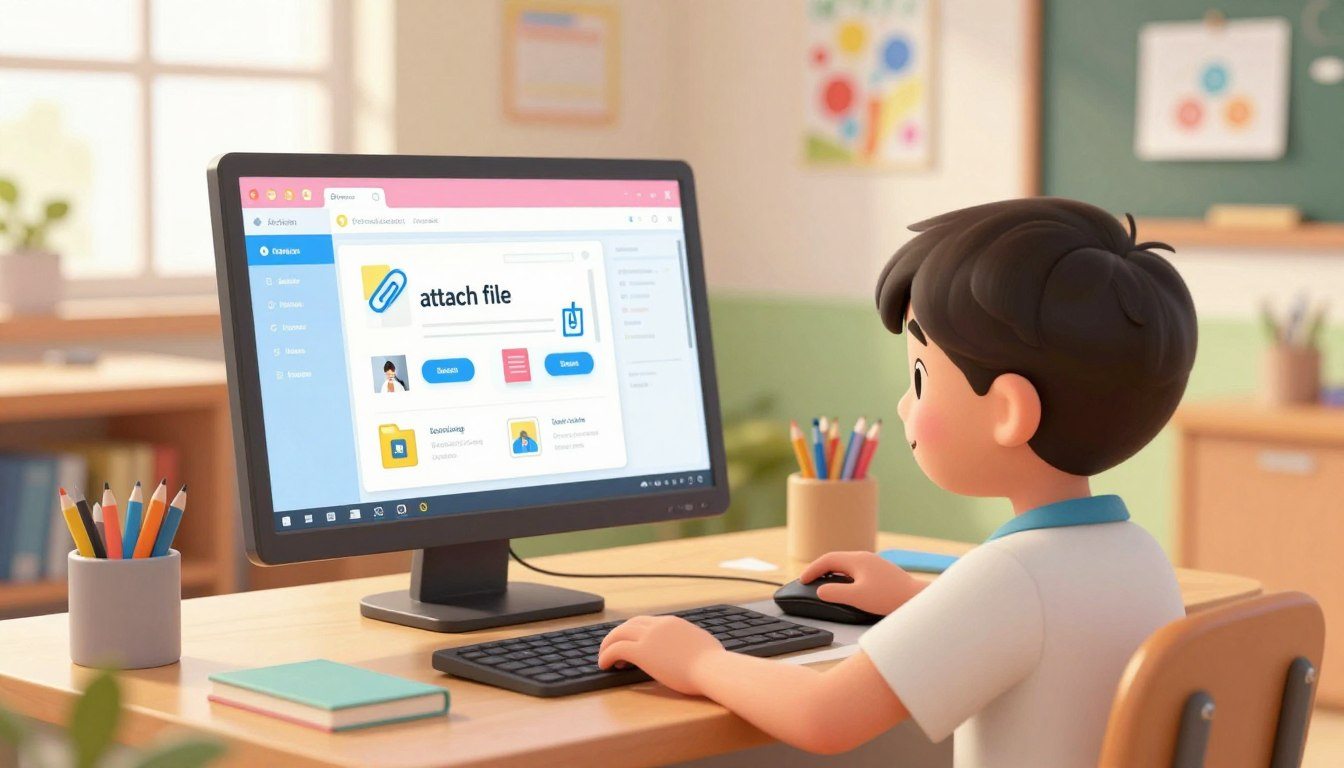
Sending a homework file by email is a useful school skill, but it can be confusing the first few times. A child has to find the correct file, attach it to the message, write a clear subject line, check the teacher’s email address, and wait until the file finishes uploading before clicking Send.
This guide helps parents walk a child through the process step by step. It covers how to prepare the file, attach it in Gmail or another email app, write a polite message, avoid common mistakes, and use email attachments safely.
Do the first email attachment together before your child needs to send real homework. Make sure they know where the file is saved, how to check the recipient address, and why they should never open or send unexpected files without asking an adult. A child should not send personal information, photos, passwords, addresses, or private family details by email unless a parent has reviewed it first.
Before Sending: Make Sure the File Is Ready
Most email problems happen before the email is written. The child may attach the wrong file, attach an unfinished version, or not know where the document was saved. A short preparation step prevents most of that confusion.
Save the File First
Before attaching anything, the file should be saved and closed or fully updated. If your child is using Microsoft Word, PowerPoint, Paint, or another program, press Ctrl+S on Windows or Command+S on Mac before attaching the file.
If your child is using Google Docs, look near the top of the document for a message such as All changes saved. If it still says the file is saving, wait before sending anything.
If your child is not sure where the homework file is saved, start with our guide on how kids can save a file on Windows.
Find the File Location
Your child should know where the file is saved before opening email. Common places include Documents, Downloads, Desktop, Google Drive, OneDrive, or the Files app on a tablet. If they cannot find the file before sending, they are likely to choose the wrong one during the attachment step.
Use a Clear File Name
A teacher may receive files from many students. A file called homework.docx or document1.pdf is easy to lose or confuse with another file. A better format is:
FirstName_LastName_Assignment
Examples:
- Mia_Torres_Math_Week3.pdf
- Adam_Science_Project_Draft.docx
- Layla_Book_Report_Final.pdf
Common File Types Teachers May Ask For
Teachers sometimes ask for a specific file type. If the assignment instructions mention PDF, Word document, image, or presentation, follow that instruction first.
| File Type | What It Usually Means | Common Use |
|---|---|---|
| .docx | Microsoft Word document | Essays, reports, typed assignments |
| PDF document | Final drafts, worksheets, files that should keep formatting | |
| .jpg / .png | Image file | Photos of artwork, projects, or scanned pages |
| .pptx | PowerPoint presentation | Slideshows and class presentations |
If your child is unsure which type to send, check the assignment instructions or ask the teacher before sending the file.
How to Attach a File in Gmail
Many schools use Gmail or Google Workspace for students. The exact layout may vary slightly, but the basic process is usually the same.
- Open Gmail and click Compose.
- Type the teacher’s email address in the To field.
- Add a clear subject line, such as Math Homework Week 3 – Mia Torres.
- Write a short message explaining what is attached.
- Click the paperclip icon near the bottom of the email window.
- Find the homework file in Documents, Downloads, Desktop, Google Drive, or the correct folder.
- Click the file once, then click Open.
- Wait until the file finishes uploading and appears at the bottom of the email.
- Check the email address, subject line, message, and attachment one more time.
- Click Send.
The waiting step matters. If the child clicks Send before the file finishes uploading, the email may send without the attachment or may fail to send properly.
How to Attach a File in Outlook or Another Email App
Outlook, Yahoo Mail, Apple Mail, and other email apps use similar steps. The attach button usually looks like a paperclip. The wording may say Attach, Attach File, or Insert File.
- Start a new email message.
- Enter the teacher’s email address.
- Write a clear subject line.
- Click the paperclip or attach button.
- Choose the correct file from the device or cloud storage.
- Wait for the file to appear in the email.
- Review the message and attachment before sending.
If the app offers both Attach file and Insert from cloud storage, use the option your teacher expects. Some teachers want the actual file attached. Others prefer a Google Drive or OneDrive link.
Attaching Files on a Tablet or Phone
On tablets and phones, the steps are similar, but files may be stored in different places. A child may need help finding the file in Google Drive, iCloud Drive, OneDrive, Photos, or the device’s Files app.
On iPhone or iPad
Open the email app, start a new message, and look for the attach option. In Apple Mail, you may need to tap inside the message area to show the menu, then choose an option such as Attach File or select a file from the Files app. If the homework is a photo, use the photo attachment option only if the teacher asked for an image.
On Android
Open Gmail or the email app, tap Compose, then tap the paperclip icon. Choose Attach file or select a file from Google Drive if the assignment is stored there. Wait until the file appears in the message before sending.
Write a Clear Email to the Teacher
A child should not send a blank email with only a file attached. Teachers need to know what the file is, who sent it, and which assignment it belongs to.
A simple email is enough:
Subject: Math Homework Week 3 – Mia Torres
Dear Ms. Johnson,
I attached my math homework for Week 3. Please let me know if you have any trouble opening the file.
Thank you,
Mia Torres
This message is short, polite, and clear. It also gives the teacher a reason to reply if the file does not open correctly.
Safety Rules for Email Attachments
Email attachments need careful habits. Children should understand that sending a file and opening a file are both actions that can involve privacy or safety risks.
- Do not open unexpected attachments from people you do not recognize.
- Do not send personal photos, addresses, passwords, phone numbers, or private family information without a parent checking first.
- Double-check the teacher’s email address before sending schoolwork.
- Do not click links inside suspicious emails.
- Ask a parent or teacher if a message feels strange, urgent, confusing, or too personal.
- Use the school email account if the school requires it.
A useful family rule is: if the email was unexpected, or if it asks for personal information, stop and show a parent before clicking or replying.
For safer school email habits, also read how to use a family email safely for school sign-ups.
What to Do If the File Is Too Large
Email services often limit attachment size. Large videos, image-heavy slideshows, and long media projects may not send as normal attachments. If this happens, do not keep clicking Send repeatedly.
Instead, ask a parent or teacher which method they prefer. Common options include uploading the file to Google Drive, OneDrive, or the school portal, then sharing the correct link or submitting it through the assignment page.
Before sending a cloud link, check the sharing setting. The teacher needs permission to open it, but the file should not be made public unless the teacher specifically asks for that.
Try This Together: Practice Email Attachment
Before your child sends homework to a teacher, practice with a parent account or another safe family email address.
- Create a short practice document called My_Practice_File.
- Save it in a folder your child can find again.
- Open email and start a new message to the parent’s email address.
- Write a clear subject line: Practice Attachment.
- Write one short sentence explaining the file.
- Attach the practice file.
- Wait until the attachment finishes uploading.
- Check the message, recipient, and attachment.
- Send the email.
- Open the received email together and confirm the file opens correctly.
This practice shows the full process from start to finish. It also gives the child confidence before a real assignment is due.
Common Mistakes to Avoid
- Forgetting to attach the file. The email is written correctly, but the file is missing. Always check for the attachment before sending.
- Attaching the wrong file. Similar file names can cause mistakes. Open or preview the file first if you are unsure.
- Sending before the upload finishes. Wait until the file appears fully attached in the email window.
- Using a vague subject line. “Homework” is less helpful than “Math Homework Week 3 – Mia Torres.”
- Sending from the wrong account. Some teachers require the school account, not a family or personal email.
- Sharing a public cloud link by accident. If using Google Drive or OneDrive, check the sharing permission before sending.
- Opening unexpected attachments. Children should ask an adult before opening files they were not expecting.
Parent Checklist
- Can your child find the saved homework file without help?
- Is the file named clearly with the student name and assignment?
- Does your child know which email account to use?
- Can they type the teacher’s email address carefully?
- Do they write a clear subject line?
- Do they include a short polite message?
- Can they attach the correct file and wait for it to upload?
- Do they check the attachment before clicking Send?
- Do they know not to open unexpected attachments?
- Do they know to ask a parent before sending personal information or cloud links?
Frequently Asked Questions
Where is the attach button in email?
In many email apps, the attach button looks like a paperclip. It is usually near the Send button or in the message toolbar. On phones and tablets, it may appear at the top of the screen or inside a menu.
Can my child send an email with only the file attached?
It is better to include a short message. A clear subject line and one or two polite sentences help the teacher understand what the file is and who sent it.
What should we do if the file is too large to attach?
Ask the teacher which method they prefer. The file may need to be uploaded through a school portal, Google Drive, OneDrive, or another approved platform. If using a link, check that the teacher has permission to open it.
How can my child know the correct file was sent?
After sending, open the Sent folder and check the email. The attached file should appear in the sent message. For important assignments, the child can also ask the teacher to confirm if the file opens correctly.
Is it safe for kids to open email attachments?
Children should open attachments only from trusted and expected senders, such as a teacher, parent, or school account. If the attachment is unexpected, from an unknown sender, or comes with a strange message, the child should ask a parent before opening it.
Email attachments become much easier once a child understands the routine: save the file, find it, write a clear message, attach the correct file, wait for the upload, and check everything before sending. Practicing once with a parent makes the process feel much less stressful when real homework is due.
Last reviewed: May 2026. Email apps and school platforms can change their layout over time. If a button looks different on your device, check the help page for the email app or school account your child uses.